Getting Through The Gig – Negotiating A Chord Chart Part 1

In the previous surviving the gig post, I talked about some memorization skills that can help get through gigs that require learning a lot of tunes.  In this series of posts, I want to focus on how to get through gigs that may have unfamiliar chord changes.

In this post, I’m going to be discussing how to interpret chord symbols and then developing some short cuts for how to generate chord voicings on the bandstand as it were.  If you are already familiar with how to read chord voicings – you may want to skim this and just go to part 2.

There will be a lot of detail over these posts for how I’m doing what I’m doing, but once you get the concept under your belt.  It should be something you can do on the fly if need be.

As an example, I’ll be look at part of a chart Rough Hewn touch/stick/Warr guitarist Chris Lavender sent to me, called 232

(232 © Chris Lavender 2011 used with permission)

.

First Step – Know what notes the chord symbols are asking for.

It’s not that hard to figure out chords if you know what the symbols mean.  Here are some general shortcuts for chord types beyond triads.  There are only 3 basic categories that we’ll look at: Major, Minor and Dominant:

.

Major

(Sometimes designated by “major”, “maj” or a triangle)

Any type of major chord always has a major triad (Root, 3rd and 5th) plus a major 7th in the full chord voicing unless it states otherwise.  If a chart has any type of C Major chord variation (C Major 7, C Major 9 or C Major 13)  –  the voicing has a C, E, G and B.

Note:

When removing notes from any voicing the 5th is usually the first to go (unless it’s altered like #5, or b5).

The initial short cut is: any major type chord starts with (1,3, 7) or (C, E, B) in the key of C.


Minor

(Sometimes designated by “minor”, “min”. or “-” )

Any type of minor chord always has a minor triad (Root, b3rd and 5th) plus a b7th in the full chord voicing unless it states otherwise.  If a chart has any type of C Major chord variation (C minor 7, C minor 9, C minor 11 or C minor 13)  –  the voicing has a C, Eb, G and Bb.

Note:

When removing notes from any voicing the 5th is usually the first to go (unless it’s altered like #5, or b5).

The initial short cut is: any minor type chord starts with (1,b3, b7) or (C, bE, bB) in the key of C.


Dominant

(Sometimes designated by “dominant”, “dom”. or no designation

i.e. “C7”, “C9” or “C13” refers to a dominant chord unless otherwise stated)

Any type of dominant chord always has a major triad (Root, 3rd and 5th) plus a b7th in the full chord voicing unless it states otherwise.  If a chart has any type of C dominant chord variation (C 7, C 9, C 11 or C 13)  –  the voicing has a C, E, G and Bb.

Note:

When removing notes from any voicing the 5th is usually the first to go (unless it’s altered like #5, or b5).

The initial short cut is: any dominant type chord starts with (1,3, b7) or (C, E, Bb) in the key of C.


Beyond this, you just need to add in additional pitches based on what the voicing indicates.

Here’s a chart that relates all of the potential chord tones that you might see to a scale degree for quick reference.

Putting the chart to use:

The first chord in the 232 chart is a C major 9 #11.  As a reminder – any extended C major chord will have C, E, G, B in the full voicing.  Since it’s a C major 9, a 9th – which in the chart above is a D – will have to be added.    The #11 means an F# will get added to the voicing as well.  This brings the full voicing to (C, E, G, B, D, and F#).

Again, the only time you would probably play a full voicing is for a solo guitar or perhaps a duet performance.  In the next post, I’ll discuss how to extract what you need to get through the chart.

.

Second Step – Know some chords

When I went to Berklee, I was advised that I should learn at least 2 chord voicings for any chords that could be put on a chart in front of me.  These stock voicings are typically low E or A string rooted (as it helps with visualization) and are the default voicings that you would use if you were sight-reading a chart.  These typically include triads, Major /Minor / Dominant chord 7th, 9th, 11th and 13th chords.

While this is, generally, useful advice, I should state for the record that while I did the initial memorization required for school proficiencies – I quickly forgot the majority of voicings I wasn’t using all the time. Learning every inversion of every possible 7th, 9th, 11th and 13th chord on multiple string sets will take YEARS.  For some people, it’s the best method, but it never worked that well for me.

.

Once I understood how chords worked, I never bothered to memorize many specific voicings above a 9th chord because I found some shortcuts to get the sounds I needed.


Note:

This is not to say that you should be lazy.If you follow through on the suggestions that I have – you should plan on learning triads and 7th chords at a very deep level (i.e. you should have the goal of being able to play any triad or 7th chord in any inversion in any position).

(more on how to do that in a future post)


I hope this helps!  In the next post – I’ll simplify the 232 chart with some harmonic shortcuts.

While digesting this – I’d recommend you take some time to work on your chord inversions.  If you’re unfamiliar with them you may want to check out the D major inversions I’ve posted below, and adapt this process to minor triads (just flat the third – F# and make it F in the examples below), and 7th chords (major, dominant and minor).

.

(The following is adapted from another post (Recycling Chords Part II: Triad Transformation).

.

Thanks for reading!!


-SC

.

Note:  D major is used in the following examples instead of C major because the original post dealt with transforming triads.  Each note of a 1st position D major chord can be lowered to another note on the fingerboard, without using open strings.  In other words, each chord is a moveable voicing on the fingerboard. The following should be adapted to C major and other keys as necessary.

.

The first step to adapting voicings is to make sure you can visualize triads both horizontally and vertically across the fingerboard.

.

Horizontal (i.e. positional) Visualization

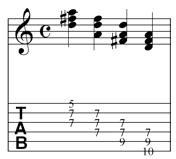
Here’s a series of  D major chord inversions in the 2nd position.

Helpful Tip

As you play through these voicings pay particular attention to which chord tone each finger is on (i.e. for the first D Major chord voicing – the first finger is on the 5th of the chord (A), the third finger is on the root (D) and the second finger is on the 3rd (F#). More on this later.

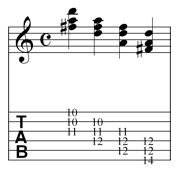
Here are the D major inversions in the 5th position

and in the 10th position.

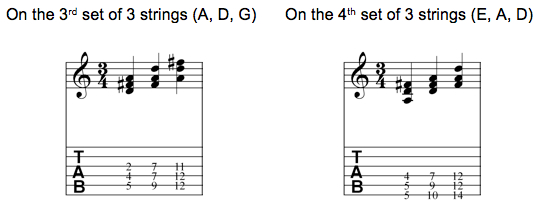
Vertical Visualization

.

Note:

the important thing with both the horizontal and vertical voicings is knowing where each chord tone is located in the voicing.

.

One way to practice this is to play through the chords and stop at random points and ask, “where is the root?” “where is the 3rd?”  “where is the 5th ?”  This has to be full internalized to be able to realize the goal of instant chord tone identification.


Hardware vs. Software – Or Praises And Perils In Live Laptop Use

Before I drag this article kicking and screaming down the bloody cobblestones of memory lane, I’ll mention that the kick off for this post was a recent effort to stabilize my laptop rig.

.

A couple of months ago I found out that the 4 gig chip that my laptop would support had come down in price.  This would allow me to max out my elder laptop at 6 gigs instead of the current 4.  I surmised that had to improve performance overall.

After saving up some cash – I ordered the chip from OWC.  It came very quickly and installation was a snap.  I turned on the laptop and seeing the memory say 6GB – was thrilled for about a ½ hour.

.

At that point, the laptop screen did a big wipe down and I got an error message of death – you need to shut off your laptop, which I did.  It powered back up and 10 minutes later did the same thing.  I took out the memory and added the old memory back and everything worked fine.  I contacted OWC – they had me try a few things, and then sent me an RMA so I could send it back for free.  The promptly sent me another chip.

.

I got that chip in the mail on Monday.  I installed it in my laptop and everything was fine.  I ran it all day and there were no issues.  I got it home and was streaming a video while I was working out and sure enough about an hour in the laptop screen did a big wipe down and I got an error message of death – you need to shut off your laptop, which I did.  This time however, when I turned off the laptop, I felt underneath it – I had the laptop elevated to get it some air to help cool it down, but even so – it was still hot enough that you could fry an egg on it.  I set the laptop on its side to cool it down and once the back was cool to the touch – maybe a couple of minutes later – started it up and it’s been working fine ever since.  I think it was the combination of the poor airflow and table lamps I have to increase the lighting. I’ll have to go to staples now and get one of those self cooling USB fan jobs and hope it doesn’t mess with the audio signal.  But it was an important reminder about the precarious nature of laptops as signal processors.   The reason I was trying this in advance was because at the next gig I have, I don’t want the laptop to shut down mid song and leave me stranded.

All of this got me rethinking the laptop vs hardware debate that I partially discussed here but is worth a broader examination.

.

The obligatory history lesson to stave off initial pointed questions of, “Do you even know what that stuff is supposed to sound like?”

As with many of the things I do, my entry into laptop guitar was completely unplanned, but in retrospect not that surprising.

When I first started playing guitar, the amp I had was a no frills, no name combo amp with a 12” speaker.  Given my influences at the time (Hendrix, Sabbath, Ozzy, etc.), it’s no surprise that almost immediately I started looking for distortion.  Then every dollar I could put together was going for other effects: wahs…chorus….delays… anything I could get my hand on to try to replicate those sounds.

When I was playing in the Committee of Public Safety (my avant-garde core French Revolution fixated band with voice, guitar, bass, cello and drums) – my signal chain was really small.  I had a Marshall JCM800 50 watt combo amp with a single 12 (this was run through a 4×12 Marshall 1960A cab).  I had a channel switcher for the amp, a volume pedal and a TC Distortion/Boost pedal.  The committee lead tone was the TC preamp before the Marshall distortion channel – and it was a creamy tone.  I want to say there was some kind of cheap delay in there as well (maybe an Arion), and from what I remember  that was it.

The Marshall got stolen from a rehearsal space in Allston while I was trying to resurrect mach 2 of the Committee.  The stolen amp was my cue from the universe that it was time to move onto another project.  In the meantime, something interesting started happening.  The more I got into pedals, the more I started getting into sounds that didn’t sound like the tones I was initially trying to emulate.  Soon the more a pedal disguised the fact that I was playing a guitar, the more I wanted that pedal.

At the time, I was working at a music store and an Ampeg guitar amp came in, and I got it for a super low price.  I started picking up some EH pedals at the time as well (including a really sweet 1st generation Russian Big Muff Pi), and I found an old tube echoplex.  I remember playing a gig and the sound man took a look at my pedals and said, “Wow – this would be a state of the art rig in like ’72.”  It was meant as a dig, but I took it as a compliment.  The rig had character, the tones were right there and it sounded as guitaristic (or non guitaristic) as I wanted it to.  That amp eventually gave way to amps by Seymour Duncan and Gibson before settling on a 4×10 Hot Rod DeVille (really a pretty great sounding amp with some mods by Tom at AzTech Electronics).

In between a lot of other pedals and effects crossed my path. This included a 1st generation Jam Man (with additional memory slotted in which really turned my head around) and eventually sold, a Rhythm and Sound (also sold), various distortions wahs and other filters.   By the time I was playing in Visible Inc (and later in The Bentmen/Tubtime/One Of Us) – my full rig was a tuner, Ernie Ball Volume Pedal, Digitech Space Station, T.C. Electronics Chorus, Memory Man Delay (original), Guyatone MD-2 delay, Akai Headrush looper, Vox Wah and another Ernie Ball volume pedal that went into the front end of a Fender Hot Rod Deville (4×10 amp).   The full rig sat in an 88 key keyboard flight case that would not fit width wise across my car seats.

During all of this, I was constantly investigating different digital options.  I had the original zoom effect that I used for quite a while, and when the line 6 came out – I remember getting a used 2.0 bean and just being blown away at the flexibility of it.  Even later – my B-rig (and the one I used primarily with Annette Farrington) was the pod bean with a line 6 pedal board, the looper, wah and volume pedal.  (Later in a cover band – it was only the Pod 2.0 in front of the amp). And that rig sounded pretty damn good in front of my amp.  Even the band’s sound guy went from dismissive to begrudging concession.  It really didn’t sound AS good as the full board – it sounded different – but it worked and it was a hell of a lot less stuff to bring than a huge pedal board.

This is all mentioned because about a month before I left Boston to go to CalArts, my rig was stolen out of an uninsured rehearsal space.  The only thing I had taken home with me was the space station and the Akai Headrush – the amp and all the rest of the pedals were gone.  The band hadn’t been rehearsing for a while so I had no idea anything was missing until a month later.  By then there wasn’t much of anything to do – but leave Boston and start what would now be my acoustic studies at CalArts.

My first year at CalArts, my wife got me a Pod XT for a Christmas gift – and that was my ticket back on the crazy train of gear.  But back when I was rocking a G3 ibook – I remember thinking that someday I’d be able to get guitar tones from a laptop.  The day would come that I’d be able to bring a guitar and a laptop and leave all those pedals behind.  And now I can say – that day is partially here.

Computer guitar tones are the best they’ve ever been, but there are a number of issues big and small that I think need to be acknowledged.

1.        Laptops do not sound like tube amps.  They just don’t.  Even running a laptop with a Marshall patch through a tube amp – doesn’t sound like a Marshall.   Having said that,  it doesn’t sound bad.  In fact, it sounds pretty damn good.  What laptops have all over traditional amps and pedals is flexibility and portability.  Knowing that I can bring a laptop and a guitar and (if the venue has a PA) get through a live show makes touring a LOT easier for me.

2.       Pedals don’t often break – but when they do – they can be bypassed and the amp still used.  The downside is that when the laptop goes down – you’re done.  I’ve never ever had a hardware POD breakdown at a show (other than one time when the venue lost stage power and ALL the amps (and PA) lost power.  I have had laptop programs crash mid set and it’s very nerve-wracking in a live context in the best situations.  In the worst situation – the show’s over.

Laptops are fragile and pedals are built for durability.  I don’t have to worry a well-built pedal getting ruined at a show (unless someone pours their beer on it) – but any one of a number of things could be the end of my laptop.

3.  The technological barrier to true emulation will be cracked.  The news of the new Thunderbolt protocol in mac books is stunning to me.  12x faster than firewire 800?  At a certain point the algorithms will be improved enough, the data transfer rate and processing power will be so high – that you will no longer be able to tell if something was recorded on tape or not.  You will no longer be able to tell if that’s a real tube amp you’re playing through.  It isn’t a question of if it will happen – only when – and honestly I think we’re only about 5-10 years away at the most.

4.  Emulation allows for sounds not feasible in the real world.  Do I want to get an idea of what running a guitar through 6 tube echoplexes sounds like?  Digitally? No Problem.  In the real world – you’d have to first find 6 working tube echoplex units – and the hiss would be unusable, trust me on that one.

If you’re planning on using a laptop live – here are some suggestions I have for you

1.  Optimize it.

  • From the get go, get the fastest processor, maximum memory and fastest hard drive you can afford initially. It doesn’t have to be the latest and greatest – it just needs to be relatively fast and expandable.  For my live looping rig I have a 2-year old Macbook Pro (2.4 gig Intel Core Duo) with 6 gigs of memory and an internal 7200 rpm drive.  I bought it with 2 gigs of ram and a 5400 rpm drive .  My initial upgrade was 4 gigs of memory and a 200 gig 7200 rpm drive as that’s what I could afford at the time.  The first time I looked at a 4 gig chip the cost was $150.  The one I just installed to get the machine to 6 gig was around $90.
  • As time goes on (and costs decrease) plan on upgrading when necessary.


  • Count on needing an external drive if you’re going to do any recording.


  • Defrag your drives – frequently. When I went from the 200 gig drive to the 500 gig drive I defragged it during the drive cloning and my system speed increase was about 30%.  It makes a big difference.

2.  Back it up.

The first time you lose all your data – you will know how important this is.  I’m especially bad at this as well and only back up once a week or so.  A hard drive is a very delicate thing.  If you knew you easily it lost information, you would lose sleep at night.

3.  Make Multiple patches and back them up as well.

Patches take up almost no drive space.  I probably have 40-50 different AU Lab settings.  The reason for this is that AU LAB remembers all of the patch parameters as you save them.  So if, for example, you finally optimize your work flow and settings and accidentally close the mixer window and save it when you close out  –  that window is gone when you reopen it – and there isn’t  a way to recall it.  What that leaves is no way to change parameters, levels etc.  In other words – you start from scratch.  I do this with POD FARM patches as well (multiple variants of tones so if I can call up parameters at will), SooperLooper, Apogee Maestro and FBV preferences as well.  Hugely helpful in sessions – believe me.

3.  Related to #2 and 3 – organize your folders and label them logically.

In working on my book, you would be amazed at the amount of time lost digging through folders with vague titles looking for old graphics.  All my patches are in one place and backed up to a flash drive.

4.  To the extent you can – run real world tests before going live.

If the stage has hot lights on it, it’s going to be doubly warm for your laptop – will it operate correctly in a live context.  In a related note, record yourself when you’re playing and check levels etc.  As I’ve said before, there’s a substantial difference in sounds that work when your practicing with headphones, sounds that work at low volumes and concert level sounds.  The more prepared you are, the easier it will be to keep it all together.

5.  Keep it compact

Typically in live performance you won’t have an hour to set stuff up.  5-10 minutes is optimal.  To the extent that you can, try to pre-cable all of your connections.  Don’t assume that the venue will have clean, continual power.  I have a surge protector built into my strip – it’s not ideal but it’s better than nothing.

6.  Go with the highest resolution your system will handle.

SooperLooper freaks out when I run anything higher than 44.1k – so if I’m looping – everything runs 44.1.  If I’m not looping everything runs 88.2, or 96k.  The clean sounds have more definition and the dirty sounds are a whole different ball game at 88.2 vs 44.1.  Again, this is where having multiple AU patches comes in handy.

7.  Be flexible.

Have a backup plan when things go wrong.  In a worse case scenario where the laptop completely fails – I can go directly into the amp and get a signal.  There won’t be any effects, but at least I don’t have to stop playing while it gets sussed out.

8.  Be calm.

This took a while for me to get my head around.  The problem with getting freaked out – is that it just exacerbates the situation as typically it leads to bad decisions which leads to more freaking out.  The more you can calmly assess what’s going wrong, the more quickly you’ll be able to solve the problem.

9.  Bring Extras.

I bring a trouble shooting pack to every gig it consists of:

  • duct tape – to tape down cables/or hold things together if need be.
  • a mag light – things get lost on stage very easily.
  • a small tool bag with screwdrivers, pliers and a wrench
  • a black magic marker and post its – in case I need to make any patch changes, write up set lists, etc
  • 9 volt batteries (for my ebow – also for my back up tuner)
  • strings and a string winder
  • back up usb and firewire cables
  • an extension cord
  • a flash drive with back up patches for everything

10.  Bring your A game.

Stage presence is a difficult thing to bring to a laptop performance, but to the extent that you can – show that you’re engaged (or at least don’t look bored/frightened) and come out from your laptop once in a while.  If it’s engaging for the audience, it’s going to make the performance go easier for you as well.

Thanks for reading!

-SC

New SooperLooper Update 1.6.16

For those of you who use SooperLooper – it looks like Jesse snuck a new release under the radar back in January that I’m just catching now.

The only release note is that the AU unit is now more stable under various hosts,  for those of you with AU validation issues – this might help out a lot.

For those of you who have a Mac and aren’t using SooperLooper – now’s the time to get on board.  SooperLooper is a shareware application that uses a lot of the functionality of the Oberheim/Gibson echoplex looping unit.  It’s leagues above the looper that you get with Mainstage and could be all you need to do a 1 person show.

(If  you do start using it – you should definitely send a couple of bucks Jesse’s way for all the hard work he’s done on it.)

-SC

GuitArchitecture, Sonic Visualization And A Pentatonic Approach For The Holidays

Happy Holidays!

.

I know I’ve been posting a lot of gear related items lately – and  based on the statistics for site visits – this seems to be what people are primarily interested in – so this has driven the posting content recently.

While I’m happy to blog about gear (not incidentally, my 8 string Bare Knuckle Cold Sweat pickup came in last night and I squealed like Bobby Hill); I don’t want to get too far away from playing.  With that in mind I’m putting a concentrated effort to get more lesson/performance posts up to rebalance the site a bit.

I’ll have a new  chord-scale lesson up next week but in the meantime wanted to explain my performance/pedagogical approach to navigating the fingerboard with a fleet fingered pentatonic lick (yes, it’s reposted – but just like Thanksgiving leftovers – aren’t they still good on day two?).

.

GuitArchitecture?  Sonic Visualization?

.

I wanted to take a moment and talk a little about GuitArchitecture, sonic visualization and re-examine a chestnut from the lesson page as a little – three for the price of one post.

In broad strokes, the GuitArchitecture concept is that the nature of the guitar’s fretboard and tuning lends itself to visualizing fingering patterns.

While patterns performed mindlessly can be a bad thing, they allow people to realize ideas more readily.

Through these patterns, musical structures can be realized and worked into larger sonic arrangements.  More importantly, patterns can be associated with sounds and visualizing how to realize a sound by seeing its shape on the fretboard makes performing it easier.  Hence the term Sonic Visualization.

In my forthcoming books – I have a lot of information on this topic as it applies to scales.  When approaching scales – I see them as a series of modular two-string patterns that connect the entire fingerboard.

.

The GuitArchitecture Approach

. 

Here’s an applied example of sonic visualization:

Let’s say I’m playing a solo over an E minor chord.  As mentioned in a previous post – when soloing over a minor chord you can substitute a minor chord a 5th away (in this case B minor).

So if I’m thinking of using E pentatonic minor over the chord (E, G, A, B, D) I can also use B pentatonic minor (B, D, E, F#, A).

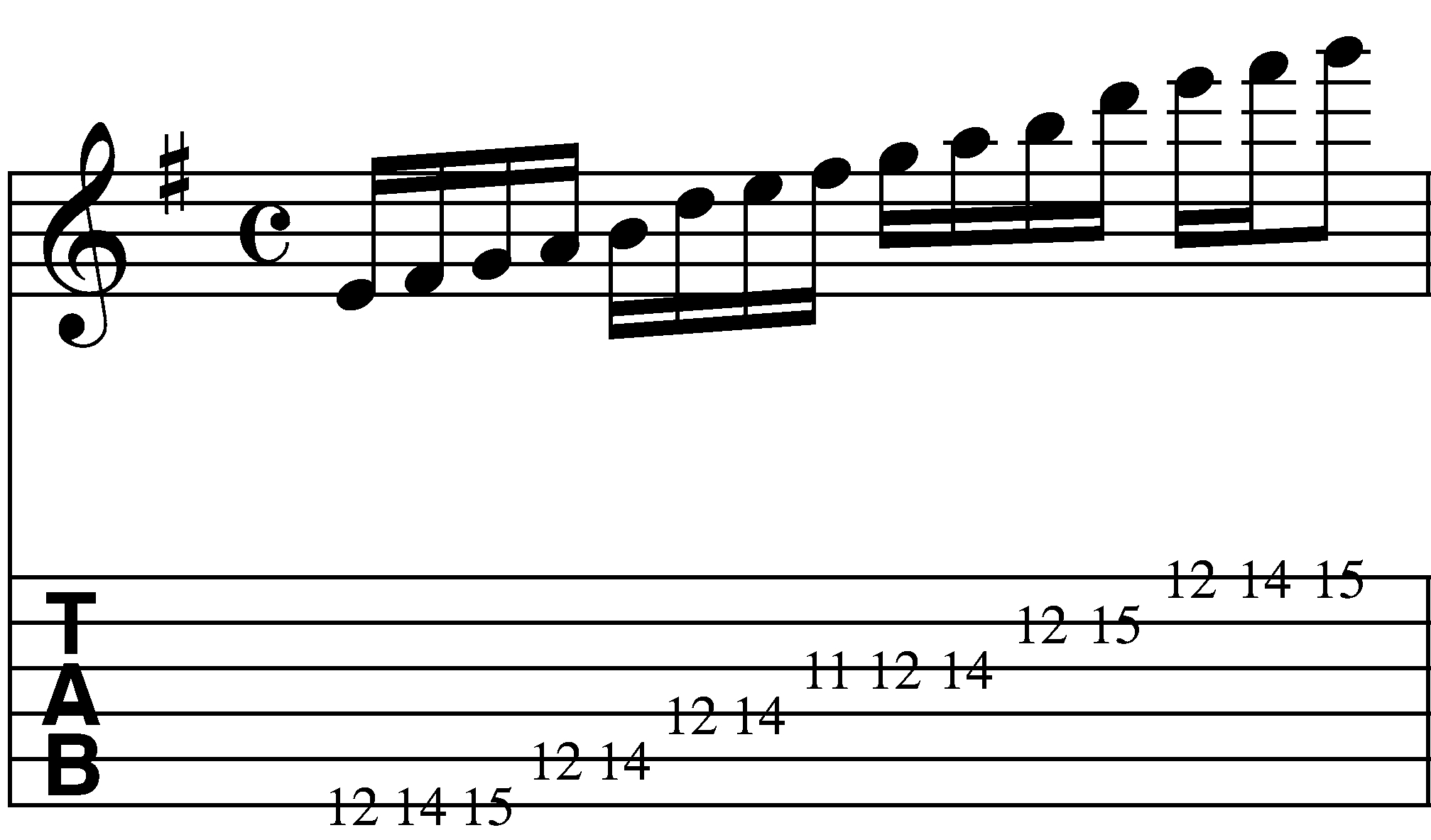
If you look carefully – you’ll see the only difference between the two is the F# and the G.   Both notes sound good against E minor, so if we combine them we get a six- note scale (E, F#, G, A, B, D).  Here is a sample fingering of the combined scales in the 12th position.

.

If that scale were fingered as a 2-string scale instead of a six- string box pattern – the same fingering pattern can be moved in octaves – thus eliminating the need for multiple fingerings. (This is the same approach I’m using on 8 string guitar btw).

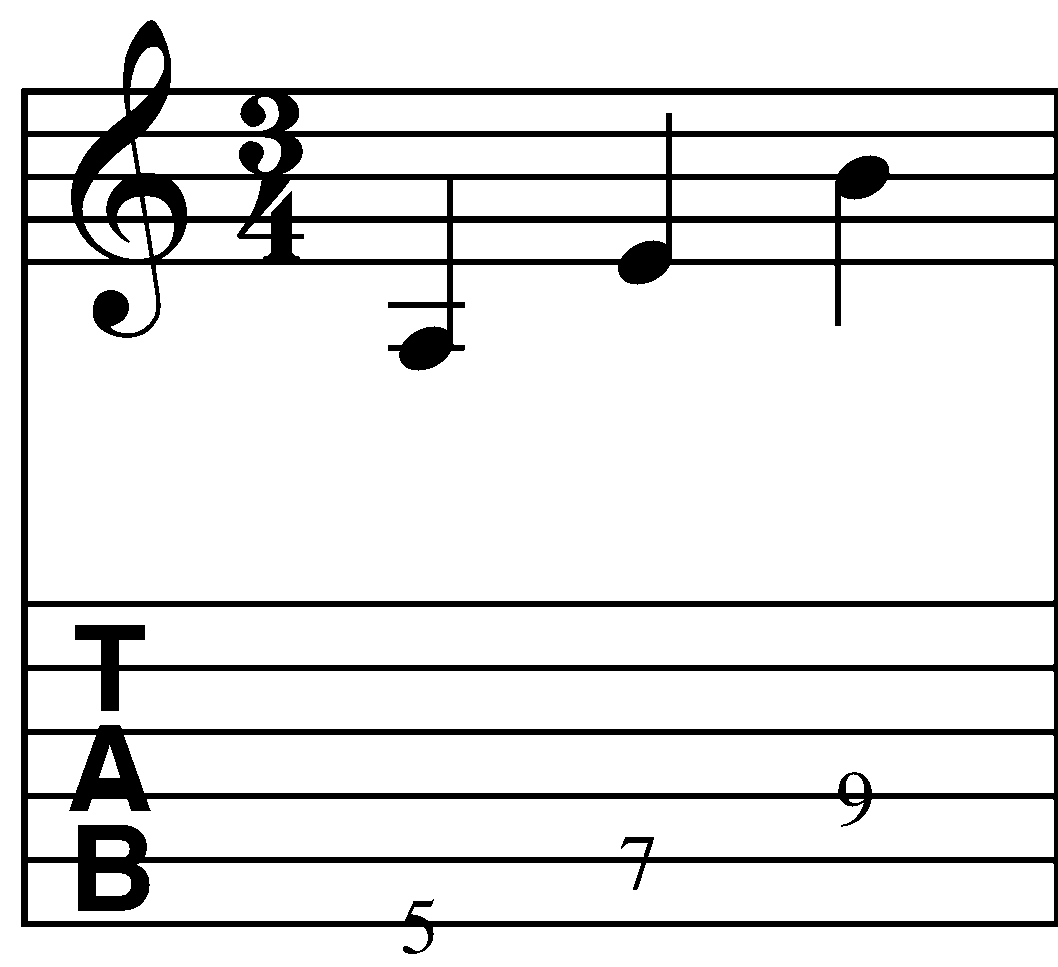
Here is an mp3 (note mp3s are a little glitchy in Safari – if it doesn’t play you may just have to reload the page) and notation/tab for the descending scale:

.

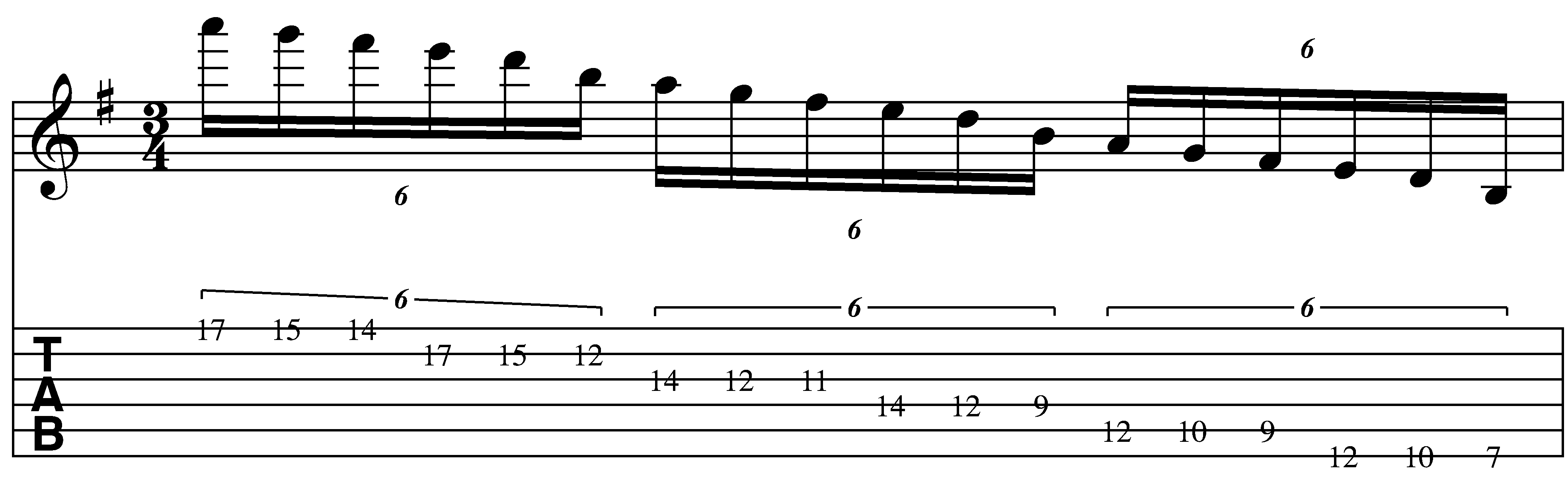
Sextuplet descending

.

.

* Fingering Note: I finger both patterns with the 1, 2 and 4 fret hand fingers on both string sets.

* Descending Picking Note: I play this with a modified sweep picking pattern

E string: up-down-up

B string: up-down-up

.

The picking pattern is the same for each string – but when I switch strings – it’s two up picks in a row.

Here it is  ascending:

Sextuplet Ascending

.

* Ascending Picking Note: I also play this with a modified sweep picking pattern

.

E string: down-up-down

A string: down-up-down

.

The picking pattern is the same for each string – but when I switch strings – its two down picks in a row.

If you’re used to alternate picking  – you can use that approach as well but I try to apply the same picking pattern to all three-note per string patterns.

.

Practicing the pattern

.

In addition to focusing on the timing of the notes – it’s very important to practice slowly and only increase speed when both the timing (are all the notes being played with rhythmic equivalence?), tone (i.e. can you hear all of the notes clearly?) and hand tension (is your hand should be as relaxed as possible?) are all working together.

I’ve written a whole series of posts on practicing  (Post 1post 2post 3post 4post 5post 6 and post 7) that I’d recommend checking out if you haven’t already done so – but the simple principle here is to pay attention to what I call the 3 T’s in Performance: Timing, Tone Production and Tension.

This particular approach is challenging – particularly if you’re not used to the stretch.  Just remember to practice in small focused increments and try to increase steadily over time.

.

The Tones:

.

For those of you who are interested, tone on this recording was the same AU Lab/Apogee/FNH combination that I detailed here:

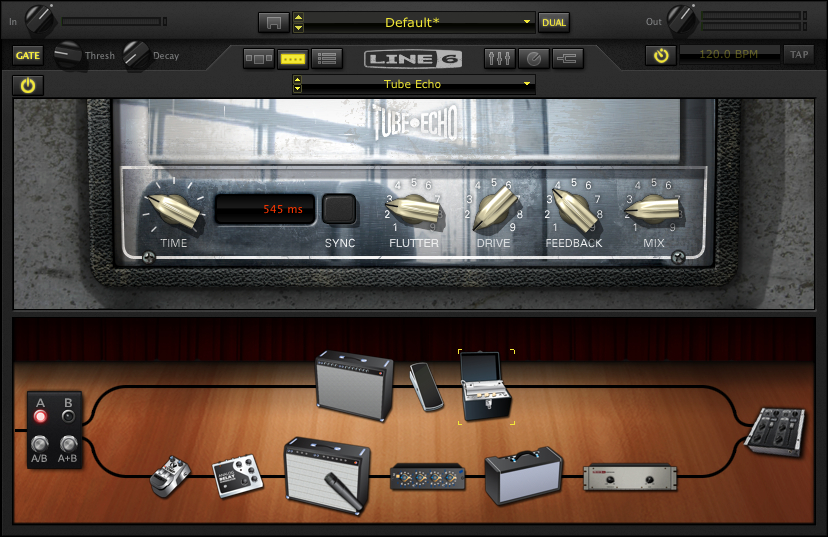
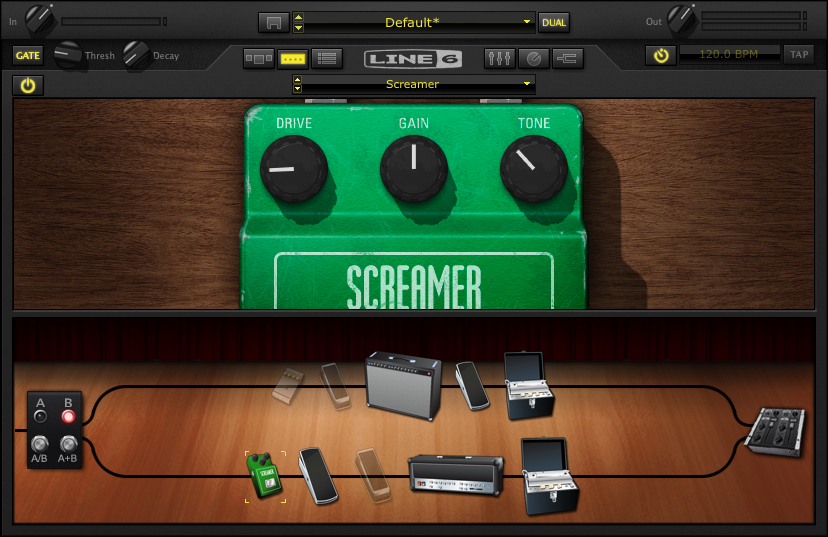
Here’s a screen shot of the Pod Farm setting (The tone can be downloaded from line 6 here):

.

That’s all for now

.

I hope this helps!  You’re free to download and distribute any of the lessons here but I maintain the copyright on the material.

I’m always looking for feedback on what people find useful and what they don’t so if you have any questions or comments, please feel free to e-mail me at guitar.blueprint@gmail.com

Schecter Omen 8 String Review Part 2 – String Observations And Sound Clips

Some observations about strings

I mentioned a lot of the issues I had with the  low F# string in part one of this review, as well as some specifics of getting an .007 up to pitch as the high A string.  I still haven’t has a change to get the guitar properly set up, so everything I’m posting here should be taken with a grain of salt.

While an .007 D’Addario can be stretched up to pitch on the 26.5″ scale neck and the strings can be bent a 1/2 step or so from the 12th fret up – it is pretty tempermental (I snapped the 5 strings I ordered from juststrings.com over the course of a couple of days).  Since the Octave4Plus strings may take anywhere from 2-6 weeks to get shipped, I’ve ordered 30 sets of the .007s in the meantime (about $.50 a string versus about $6 a string for the Ocatve4plus – but if those strings don’t snap when you look at them the wrong way – it’s a good investment).

I like the D’addario .010 7 string pack set a lot for this guitar.  With the extra scale length – the tension is a little closer to an .011.  While I can’t really bend on the .007 – I can dig in on the other strings and be a little more aggressive with the bending.

Because I ran out of .007s (and none of the local music stores stock them) I found place that carried single .008s.  Those strings will not handle being tuned to high A (apparently Octave4Plus .008s can handle this tension at this scale – FYI) – so I’ve been playing the guitar tuned down a 1/2 step to acomodate the high Ab.

.

Some modifications you may want to make / Design Recommendations

.

  • The tuners really can’t handle the strings at this pitch.  Since the guitar has 4 tuners on a side – you would need to purchase two 6 string sets to replace them.  While I like Steinberger tuners – I’d have to think quite a bit before I sank $200 into tuners on any guitar.  I’d recommend using the highest gear ratio you can get.


  • While the pickups are better than what you’d expect on a budget guitar, they are a little lackluster.  Here is the sound of a B minor scale played with the neck, middle and bridge pickup settings on a clean amp setting in AU lab with PodFarm.

(Note – if you have a problem hearing the mps3 just refresh your browser window – it’s a little glitchy in Safari but seems to work fine in other browsers.)

Also – while I could have edited the clips a little tighter – the hum from the CRT is present in the clips so this should be a realistic testing environment of what some one would get just pluging this into their laptop.

Here is the sound of a B minor scale played with the neck, middle and bridge pickup settings on a dirty amp setting.

Here is the sound of a dirge type of riff played with the neck pickup.

Here is the sound of a dirge type of riff played with the middle pickup settings.

Here is the sound of a dirge type of riff played with the bridge pickup.

I plan on swaping these out with Bare Knuckle Pickups at some point.  While you could spend $200 more and get a Damien Elite – with better tuners and an EMG set – I’m not really psyched about the EMG tones.  I’d rather have $200 to spend on pickups I like rather than spend $200 more on a guitar and still have to swap out the pickups.

.

Update:

Since this initial post – I’ve had a Bare Knuckle cold sweat put into the neck position.  Info, pics and mp3’s here.

  • I like the belly cut a lot – but I plan on getting a wrist cut added to the body to cut down on the slab feeling when playing it.
  • As I mentioned before – the 24th fret on anything other than the highest string is pretty much just for show.  If you really wanted to access those frets, you need to modify the bout.

Final Thoughts

When I play a chord like this C major 9 #11 (if you listen under headphones – you can hear all the harmonics ringing out at the end like a piano with the sustain pedal on) I’m surprised that more people don’t go this route.  Eight string guitars may not be for everyone – but for those of you who are feeling adventurous this is not only most inexpensive entry point for exploration, it also gets you a guitar that is very similar in features to the model that’s $200 more – and stand up to other eight strings costing more than twice as much.

Thanks for reading!

-SC
Recycling Shapes or Modular Arpeggios for Fun and Profit

When improvising, I need to be able to access sounds immediately.  One tool that I use for this is Sonic Visualization (which is really a cornerstone of the GuitArchitetcure concept).  In Sonic Visualization – I associate shapes with sounds so that I can make changes, modify  or develop ideas in real-time.  Here’s one example of this in action and has some cool ramifications for application.

For the audio examples – I’ll be using a Line 6 variax AC 700 strung with D ‘addario .012 phosphor bronze strings – to show that this can be performed on an acoustic guitar.  I used the line 6 as I could record it direct into the laptop in AU lab and not have to use a microphone.

First:  Here’s an example of this approach played at tempo.

Now let’s start slowly and see how to get to that point.

Let’s say we were going to solo over an A5 chord.

Since there are only 2 unique notes (A and E), you could play almost any type of scale or arpeggio over it – but for a moment – let’s look at a minor tonality.

If I was playing straight up metal, I might just play an A minor arpeggio over it.  There’s nothing wrong with this sound – but I want to spice it up a little.

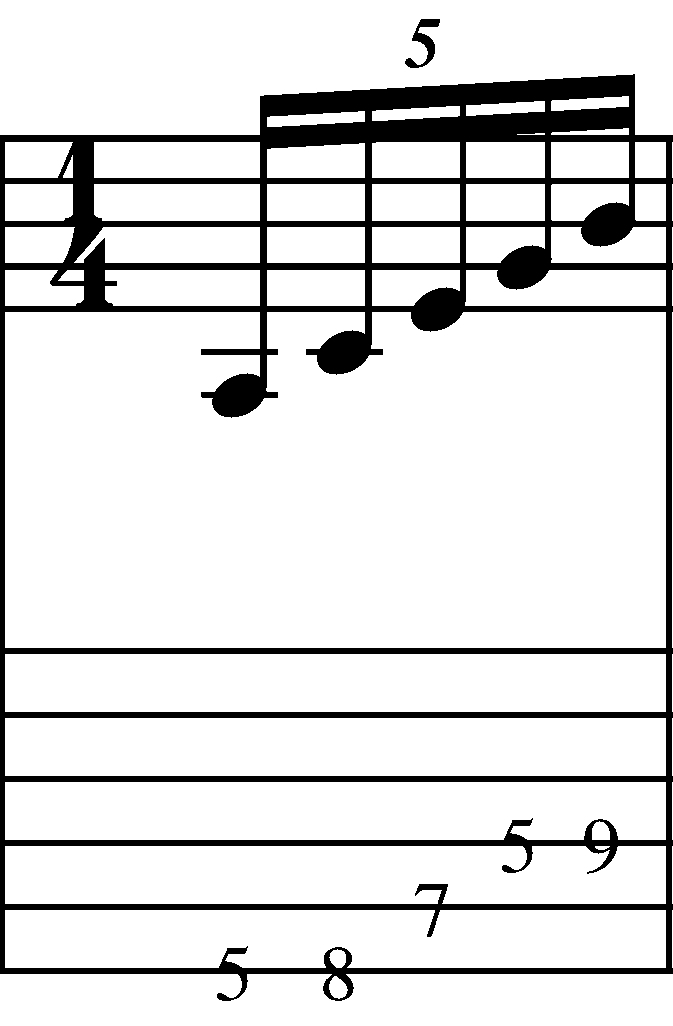
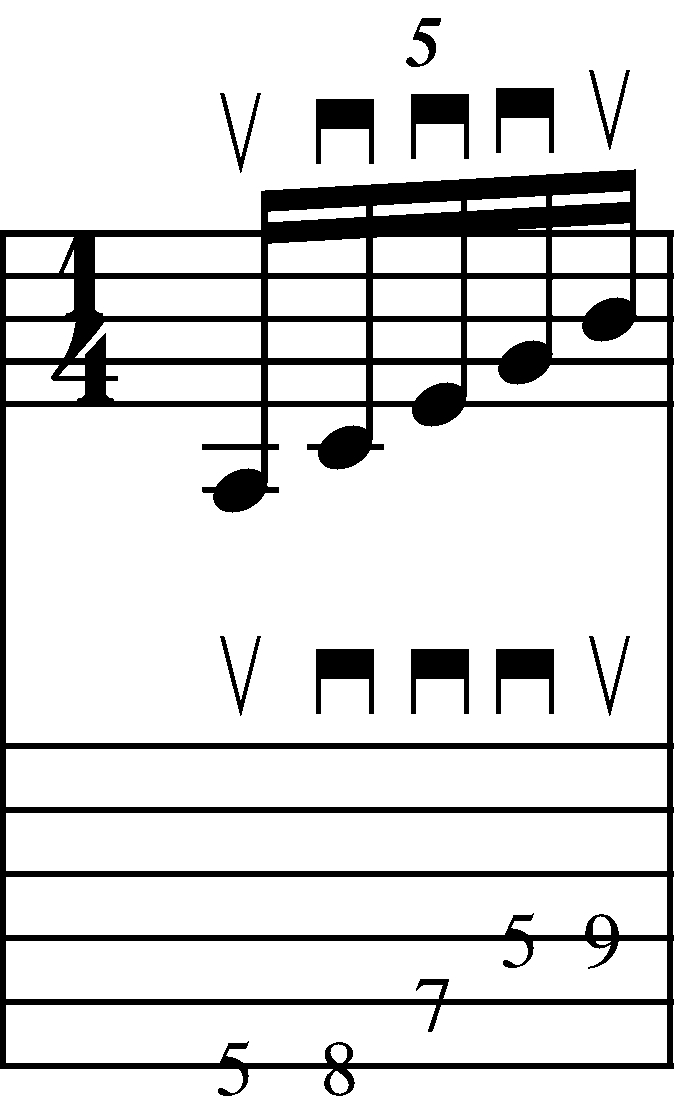
One thing I’ll do as a starting point is to extend the arpeggio. Instead of just playing an a minor triad (A, C and E) – I’m going to add a G and a B to the arpeggio creating an A minor 9 sound.  Here’s the form I’ll be using:


Some quick notes:

Fingering – basically I view this as a positional form so I’m using the 1st finger for notes on the 5th fret, 2nd finger for the E on the 7th fret, 3rd finger for the C on the 8th fret and the 4th finger on the B on the 9th fret.

Hand tension – As your playing through this shape – you want to keep your fretting hand as relaxed as possible.  The more tense your hand is – the more difficult this will be to play.

Picking – you could play this with alternate picking or all hammers – but I’m going to recommend a specific picking pattern for this arpeggio:

Notice that it starts on an upstroke and then uses all down strokes.  This picking pattern will become very useful as this process continues – but if you don’t have a lot of experience sweep (or rake) picking, you’ll need to keep your picking hand relaxed and work on getting the attacks all happening in time.

Timing – you’ll notice that this is a group of 5 (i.e a “Quintuplet” or “Pentuplet”) which means that you are playing 5 notes to the beat.  The  key here is to make sure that you are playing the notes in an even division – (i.e. the same length of time for each note and each space between the notes).

Here’s an audio example of just the arpeggio – first played slowly and then at tempo.

Note: in some browsers (Safari in particular)  the audio doesn’t always load properly in the new window.  If you just refresh the window it usually comes up the second time.

Obviously a metronome will help with consistency – but it you’re having trouble with hearing the division of 5 try the following.

Set up a metronome.

Set the click at a slow enough level that you can play 1 note per click.

Accent the first note and tap your foot to the first note only

Play each note of the arpeggio on a metronome click.

On the repeats – accent the first note and tap your foot to the first note only.  If you can – try to figure out the tempo of the first tones only (a tap tempo feature will help a lot here) and now try playing the arpeggio with only the first accent.  This is annoying to do for long periods of time – but can help a lot for short practicing cycles.

You may want to just start with this one arpeggio and work on synchronizing both hands – that alone could take some time if you’re unfamiliar with this technique.

From a performance perspective – you’re looking for uniformity of attack with regards to both timing and volume.


Recycling shapes

Here’s an interesting observation – If we play the same minor 9 shape we just used but this time move it to the 5th of the chord (In this case the pitch E or an E minor 9 arpeggio ), we get the notes E, G, B (which were also in the last arpeggio)but we get 2 added pitches D and F# which here act as the 11 and 13. This creates an over all A minor 13  or A Dorian sound.

Short cut #1 – when playing over a minor or minor 7th chord – you can play minor arpeggios from both the root and the 5th of the chord over it.


Short cut #2 – A minor 9 + E minor 9 = A minor 13 or an A Dorian sound.

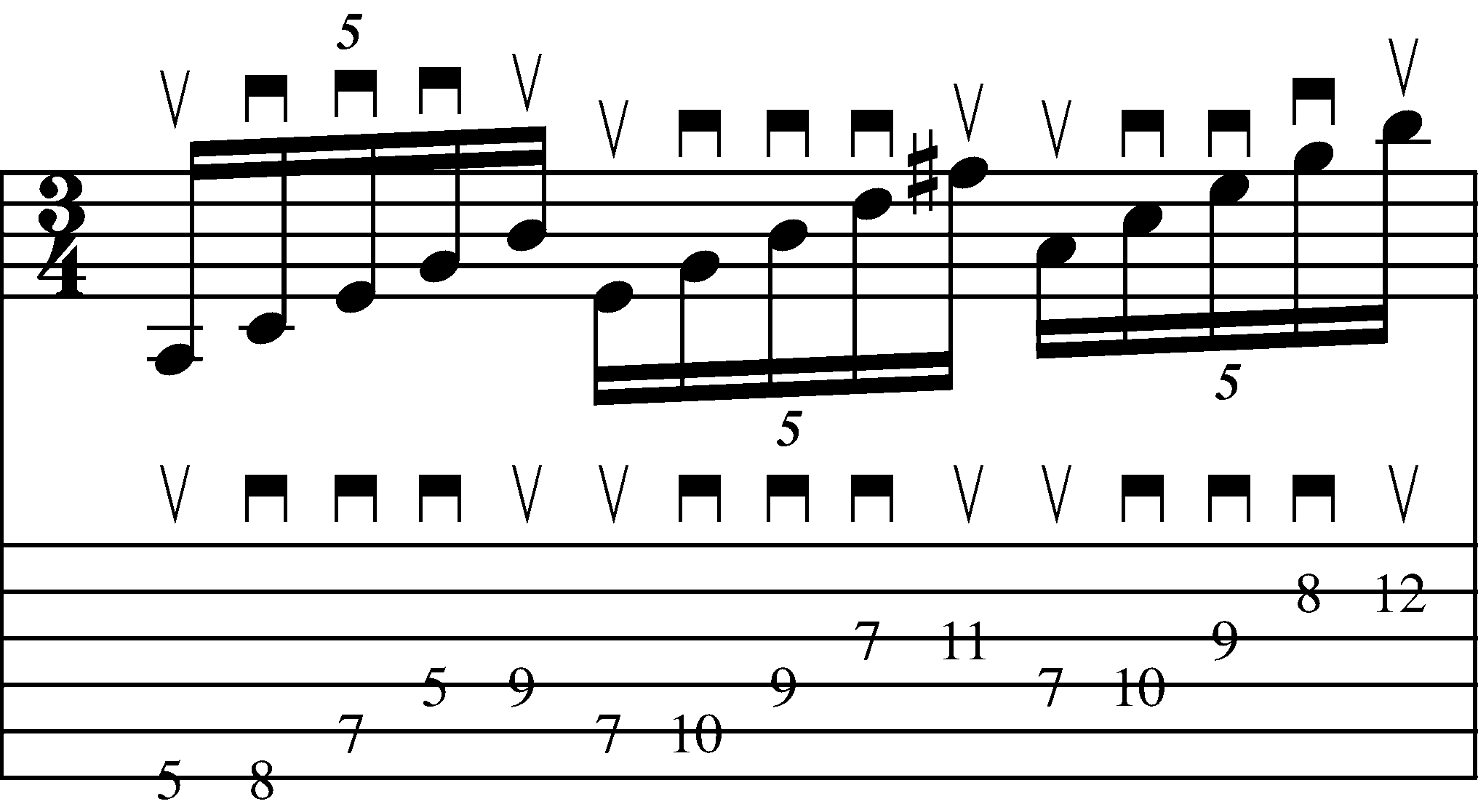
Let’s look at this in notation and tab:

Notice that by using the same picking pattern –  the upstroke of the B in the first arpeggio leads right into an upstroke on the E of the E minor 9 arpeggio.  The fingering pattern is the same as before.  Once you get the A minor 9 form down – you may need to practice the transition between the A minor 9 and the E minor 9 forms.

Here is an mp3 of the transition played at two tempos.

Finally, we can repeat the same thing on the last A of the A5 chord (although the fingering pattern will have to be adjusted by a fret for the G-B string tuning).

Here’s the top A minor 9  arpeggio played by itself – first slowly  and then faster.

As before, the same picking pattern is utilized to add continuity between the forms.  You could end on the B or pick another pitch the end the form on depending on what chord you’re playing it over.  Here I’ve chosen E.

Here’s the full arpeggio played at tempo.

You say Tomato I say Major

So now that we’ve looked at a minor example let’s use a major example.

If I sharp the C and G notes of the A minor 9 arpeggio –I have an A Major 9 arpeggio – which also works over A5.

Here’s the A major 9  arpeggio played slowly  and then faster.

Here’s another interesting observation – If we play the same major 9 shape we just used but this time move it to the 5th of the chord (In this case the pitch E or an E major 9 arpeggio ), we get the notes E, G#, B (which were also in the last arpeggio) but we get 2 added pitches D# and F# which here act as the #11 and 13.  This creates an over all A major 13 augmented 11 or an A Lydian sound.

Short cut #1 – when playing over a major or major 7th chord – you can play major arpeggios from both the root and the 5th of the chord over it.


Short cut #2 – A major 9 + E major 9 = A major 13 (#11) or A Lydian tonality.


Since I’ve broken this process down a great deal with the A minor 9 process – I’ll just highlight the lick idea here.  You could end on the B or pick another pitch to end on depending on what chord you’re playing it over.

Here’s the full arpeggio played at tempo.

Here’s the A major 9  arpeggio played slowly  and then faster.

Taking it out

As a final idea – let’s apply this concept to extending the overall tonality.

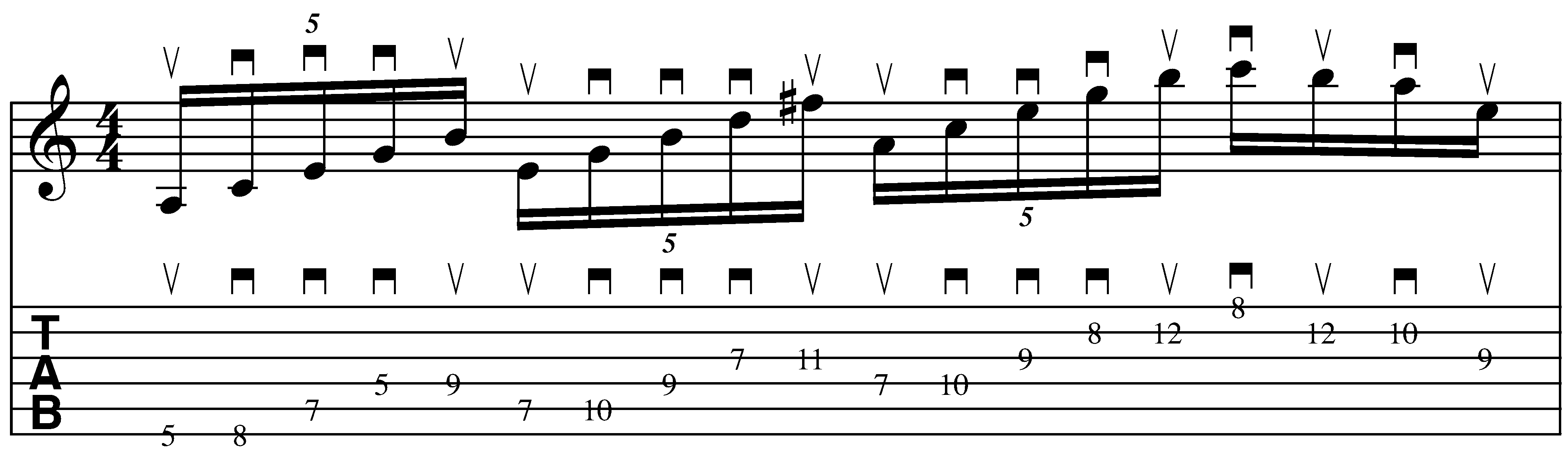
Here’s a transcription of an improvisation working off of this idea – but using a B minor 9 for the third chord of the sequence.

First let’s look at the A5 chord again:

Now – let’s realize that instead of building these structures off of the Root – 5th – root of the chord – that we could use other tones – for example here I’m going to use the Root, the 5th and the 9th:

Here’s a transcription of an improvisation working off of this idea – but using a B minor 9 for the third chord of the sequence.

Here’s the full arpeggio played at tempo.

Here’s the  arpeggio played slowly  and then faster.

C# is obviously not part of an A minor tonality – but by sneaking it into the arpeggio sequence it gently nudges the overall tonality to me in a pleasing way.

The point is to not get too hung up on rules or shortcuts – but instead to have a series of modular sounds and approaches that you can use as the need comes up.

I’ll be posting more about these types of approaches in the weeks and (more likely) months ahead.  Just remember in general to keep your hands loose, your rhythm tight and your attention focused – but if this is your first time to the site I’ve posted a number of things on practicing in general which may be helpful to you.

I’m always looking for feed back on these posts!  If possible – please take a minute to comment or drop me a pm @ guitar.blueprint@gmail.com to let me know if these are useful to you.

Thanks for dropping by!


Steinberger Gearless Tuners – Review

Steinberger Tuners:


In a previous post, I had mentioned how the high E string was slipping a bit on my electric guitar.  After lubricating the nut, I decided to bite the bullet and give a set of Steinberger gearless tuners a try.

Tuners and Gear Ratios:

Typically guitar tuners operate with a gear mechanism.  If you see a gear ratio that says it’s 12:1 – that means it takes 12 turns of the tuner knob to rotate the post 1 complete turn.  The higher the gear ratio is, the more accurate the tuning.  What happens with really low  tuning ratios is that you can sometimes get close to the pitch you are looking for but are unable to really dial it in.

Higher end guitars typically have tuners with gear ratios of 16:1 or 18:1, but when I read that Steinberger had a tuner that had a 40:1 ratio, I knew I had to give it a try.  Stu Mac was selling them in the $100 range (expensive – but the gold color will run you $50 more!)

Installation:

The installation requirements for these tuners are a minimum headstock thickness of 1/2 inch and a maximum string gauge of .060.

The tuners themselves are heavier than standard tuners but seem much lighter than the Schaller locker tuners.  As an interesting aside, for those of you who are thinking of luthery, because there are no side tuners – this means that the tuners could be installed anywhere on the headstock and not necessarily only somewhere near the edge.

Installation was a little time-consuming but not that difficult.  Stu-mac provided instructions which made the process much easier.  As opposed to having a screw on the back of the guitar holding it in place, the Steinberger has a small post that mounts on the face of the headstock.  The hole size is very small so if you decide to go back to regular tuners, it will easily be covered by the grommet .

you can see a nice breakdown of the process here.

Installed it looks like this.

Front:

Back:

In Use:

The 40:1 Gear ratio is the smoothest I have ever encountered.  Even the subtlest changes in string pitch are easy to dial in.  This is a device you want to use when you’re using one tuning.  There’s really no way to do quick alternate tunings – so If you change tunings a lot – these will probably not be a good match for you.

When changing strings, the top screw is loosened to let the string in.  You then need to pull the string tight, and clamp down the top screw.  By tight – I mean that you may need a pair of pliers to get the string in the ballpark of tension.

The knob on the back, then is used to tighten the string to pitch.  As an interesting aside, rather than winding a string around a post, the tuner actually pulls the string into the headstock.  Very interesting.  As a down side – you need to clip the string really close to the post to prevent what you see in the photos – namely strings popping out of the headstock.

The instructions that were sent with the tuner include this:

“Plain strings must either have silk or steel wrapping at the ball ends or be soldered. Otherwise, your guitar will be easy to pull out of tune.”  I haven’t soldered the ball end – but it will be interesting to see in the weeks ahead how it works.

This coupled with the tensioning issue – means that changing a string mid-gig could be tricky.  Supposedly the process puts less tension on the overall string – so you’re less likely to break one.  But I’d recommend bringing a backup guitar to the gig just in case.

As I’m using a guitar with a tremolo bridge, I do notice a distinct difference in the tension in string bending.  I’m definitely working a little more to get strings bent to pitch – and now that the tuners lock the trem is moving more when I bend.  Not a big deal – just a noticeable difference…..

The Plus Side:

Light weight (for a locking tuner).

Truly stable tuning

Incredibly smooth mechanism

Ability to tune in increments not possible with conventional tuners.

The Minus Side:

Pricey

Getting string to pitch before clamping can be tricky

Will not handle multiple tunings.

Won’t handle string gauges above .60

Verdict:

Over all, this is a case of you get what you pay for.  If you’re going to be sticking with one tuning on a guitar – these are pretty impressive tuners!

AU Lab/POD Farm 2.0/Live Laptop Rig Tutorial Part 5

Welcome back!  In this post, I’ll be integrating Absynth, a midi controller and an audio player  into the AU LAB Live rig I’ve been building.  If you haven’t read the earlier posts about this (part 1part 2, part 3 or part 4) you may want to read those before continuing on.

In the last post of this series, we’ll be integrating Absynth, a second midi controller and an audio player into the AU LAB Live rig I’ve been building.

Adding Midi Instruments:

If I want to add a midi keyboard to get some Absynth sounds, that’s really easy to do.

First, go under the AU LAB Edit Tab:

And Select Add Audio Unit Instrument:

I’m using the nanoKEY and Absynth.  If you want more info – you can click Show Audio Unit Details:

Then click ok.

If you set the Bus on the channel to Bus 1.  You can now loop the sounds in Sooper Looper as well.

Adding an Audio Player:

If I want to add field recordings, or play along to tracks, that’s really easy to do.

First I need to go under the AU LAB Edit Tab:

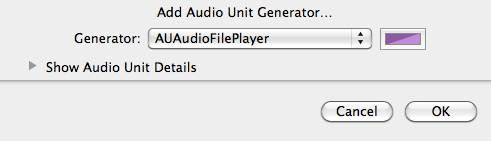
Select “Add Audio Unit Generator”:

Under Generator select “AUAudioFilePlayer”

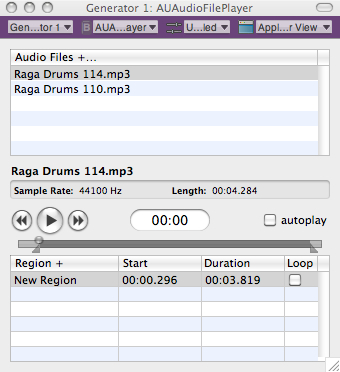
That will open up the AU File Player Track:

Now you add audio files by clicking the “+” after “Audio Files”.

By moving the markers under the transport you can set start and stop points for audio.

You’ll notice that I’ve added another track.  A nice feature of AU lab – is that in/out markers are unique to each audio file – so if I pull up another audio file.

the in/out markers are re-set.  By clicking the loop button I can loop the audio file  as well.

Another advantage of putting Sooper Looper on a bus is that in an instance like this – you can loop audio independently from Sooper Looper if you want.

AU Lab : Transport

Here’s something pretty cool the Window tab in AU Lab – select Show Transport

That will bring up the following window:

The MIDI Clock Source will probably default to Disabled – If you set it to Internal – you can use to tap tempo feature to synch effects or Sooper Looper  by tempo.  Pretty cool feature!

Also in the the Window tab in AU Lab there are some other useful options particularly –  Show CPU Load – which brings up a handy visual meter to let you see how your project is doing with it’s resources:

The rig:

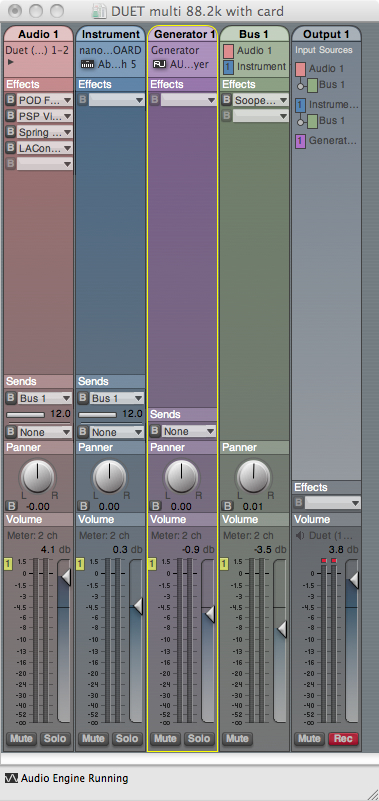
Here is the rig so far, incorporating all of the elements that have been discussed so far.

In part 6 of this series, I’m going to post some mp3s comparing and contrasting the sounds of different IR’s, audio rates, etc. and sow some strategies for using stereo rigs.

Additional Resources: AU LAB

If you go to the help option in the AU LAB menu bar:

You’ll come to an extremely deep help section that covers every possible element of AU LAB that you could imagine including sidechains and midi assignments for control elements in AU lab itself.

Additional Resources: SooperLooper

The  Sooper Looper forum is also extremely helpful with various Sooper Looper issues, and also has a specific SooperLooper AU LAB section.

Additional Resources: POD Farm

Line 6 has a lot of good information on their forum and has also produced some videos that may help with setup or assignment.

The next AU lab post – is going to focus on using AU lab and POD farm as a Dual Rig Distortion Tone.

You can find all of the laptop guitar rig posts on the Blueprints tab on the top of the page.  Once on the blueprints page – just scroll down to the Laptop Guitar Rig section.

Thanks for reading!

AU Lab/POD Farm 2.0/Live Laptop Rig Tutorial Part 4

Welcome back!  In this post, I’ll be integrating SooperLooper into the AU LAB Live rig I’ve been building.  If you haven’t read the earlier posts about this (part 1, part 2 or part 3) you may want to read those before continuing on.

An Important note about sample rates:

From here on out – if you’re going to be incorporating other audio into the session (including looping in SooperLooper) – you’re probably going to have to set the sample rate back to 44.1 (and set the Impulse responses back to 44.1).  If I’m not looping –  I try to set the rate as high as I can, but know that it’s going to have to get bounced down to 44.1 for recording, etc.

SooperLooper:

The next step is to set up Sooper Looper to be able to loop audio.  I’m going to put SooperLooper on a bus, so I can either send audio to it or bypass it as need be.

In AU LAB – – > Sends – Select BUS 1.

A new Bus Strip will open.

Under Effects – scroll down and select Sooper Looper.

When you do this, Sooper Looper will open up in 2 windows:

The first window:

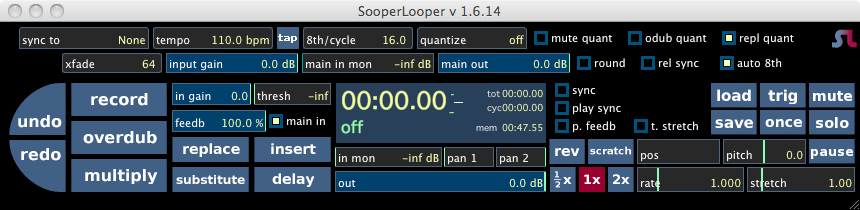
And then the GUI

A Quick Tip:

When using sooperlooper, you need to increase the “main in mon” to hear any output.

You can set up multiple stereo loops in Sooper Looper by selecting them from the SooperLooper menu.

I like to have 4-5 different loops set up.

You could do more (your limits are your system resources- but since I’m on a laptop – I want to be able to see everything (and this takes up some screen space).

Another Quick Tip:

You can set SooperLooper up for midi controls but the key binding options will help you navigate the window pretty easily as well.  They’re found under SooperLooper Preferences.

For example – you need to select an audio loop in order to record to it.  If you look at the bindings above you’ll see that select_loop_1 is currently set to “1”.

So if you’re on the active SooperLooper window and hit 1 – you’ll arm track 1. (Note the new line to the far left of SooperLooper that shows which track is armed for recording)

Make sure to save your AU Lab session.

Setting up MIDI control in SooperLooper:

In the first SooperLooper window:

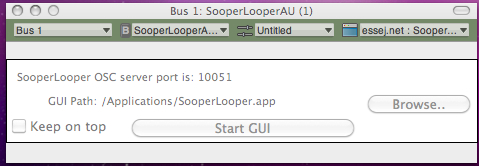
Click on the arrow next to essej.net: Sooper.

Select Midi Effect Editor

Set the MIDI Source to the controller you want to use and set the Midi Channel to the channel you want to use.

Note:

If you don’t see the controller then go to Audio-Midi Setup application (or you could find it in the Application – –  > Utilities folder) and click on the MIDI tab.

To Set up specific commands in Sooper Looper, you’ll need to go to Midi Bindings under SooperLooper Prefereces:

MIDI Binding Steps in SooperLooper:

Click “Add New”.

Select a command under “Command/Control”.

Click “Learn”.

Press the midi control you want to use to control the function.

Click “Modify”.

When you get all the functions learned  – click Save.

Also make sure you save bother you SooperLooper AND your AU LAB session.  All the midi functions should be there when you reopen it – but if they aren’t and you’ve saved them in Sooper Looper – you can just “Load” them back in.

AU Lab : Transport

Here’s something pretty cool – the Window tab in AU Lab – select Show Transport

That will bring up the following window:

The MIDI Clock Source will probably default to Disabled – If you set it to Internal – you can use to tap tempo feature to synch effects or Sooper Looper  by tempo.  Pretty cool feature!

(Also in the the Window tab in AU Lab there are some other useful options particularly –  Show CPU Load – which brings up a handy visual meter to let you see how your project is doing with it’s resources.)

Additional Resources: SooperLooper

SooperLooper is an incredibly deep plug in.  It would be easy to devote a 5 part article to just the feature set and use of it – The  Sooper Looper forum is also extremely helpful with various Sooper Looper issues, and also has a specific SooperLooper AU LAB section.

Next time – I complete the rig (for now)

You can find all of the laptop guitar rig posts on the Blueprints tab on the top of the page.  Once on the blueprints page – just scroll down to the Laptop Guitar Rig section.

Thanks for reading!


AU Lab/POD Farm 2.0/Live Laptop Rig Tutorial Part 3

Hello again.

If you haven’t read the first or the second posts about setting up POD Farm in AU Lab, you may want to review those first.

Automating Parameters with MIDI Learn:

Now let’s complete the clean guitar setup and then automate some parameters in POD Farm.

First I’m going to delete the delay and add a volume pedal.  You’ll find it under “Dynamics”.

It could just as easily go before the amp, but in this case I want to put it between the amp and the delay, so I’ve deleted the Analog delay and placed a Tube echo after the volume pedal.

Next I’ll add a wah.

And an overdrive pedal.  I’m going to have a full on distortion tone on the other channel – but this gives me another tonal option.

Across the Very top of the Pod Farm Window (labeled Audio 1: POD Farm 2 (1))

You’ll see 4 tabs underneath that window reading from left to right:

Audio1 –> POD Farm 2(1) –> Untitled –> Line:6 POD Farm 2

Select the arrow to the right of Line:6 POD Farm 2 and scroll down to Midi Effect Editor:

You’ll notice that the MIDI Source is None – which in this case means that the shortboard is getting power and sending midi, but it’s not being received by POD Farm/AU Lab.

I’ve selected the POD short board for the MIDI SOURCE, and will keep it on midi channel 1

POD Farm: Midi Learn – Volume

Now that the midi signal from the shortboard will get to POD Farm, I can use the Midi Learn function.

Let’s start with the volume pedal.

If I select the volume pedal in the signal chain a close up of the pedal will open up in the window above the signal chain.

Since I want to control the volume of the pedal  – I want to cntrl – click the level knob on the pedal.

That brings up the following option:

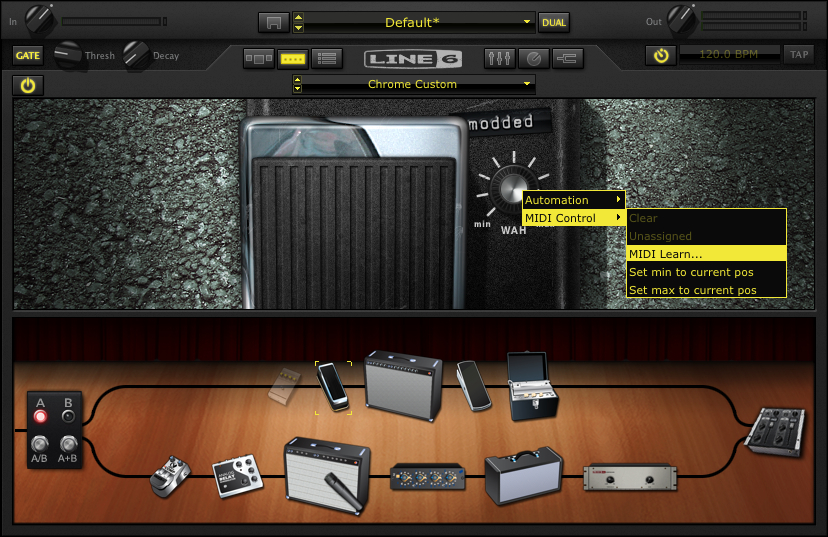
Choose MIDI Control – – > MIDI Learn.  Now if I move the volume pedal with my foot the level on the screen will change as well.

(If you make a mistake you can choose the “Clear” option above MIDI Learn and repeat the process.)

Note:

If you wanted to do this with a distorted amp and roll off the gain, you could select the amp and cntrl – click the Gain knob.  Even better, with the “Set min to current pos/Set max to current position” you could use the volume pedal for subtle variations in gain.

POD Farm: Midi Learn – Volume

Let’s see how this works with the Wah pedal.

First, as opposed to the volume pedal, which is always on, I want to be able to turn the wah pedal on and off.

The “secret” here is to automate the On/Off button under the “Gate” Button.

By selecting the MIDI Learn function and pressing down on the toe switch, that switch now turns the pedal on and off.

Next, with the toe switch on – I’m going to set the volume pedal to control the WAH sweep.  Just cntrl-click the actual wah switch for MIDI Learn and move the pedal.  The pedal will now control the sweep.

I like the Chrome Custom pedal, but don’t like the extreme high end, so I’m going to limit the scope of the sweep.  I’m going to turn the knob to 85% or so and then cntrl- click, but this time instead of selecting MIDI Learn, I’m going to choose “Set max to current position”.

Now when I sweep the wah it only goes from 0-85%.  This is really useful if you only want to filter a specific bandwidth.

I’ll set the Overdrive to an on off setting – the same way that I did with the wah.

That is enough for a general clean tone.  Now onto…

The Dirty Channel:

I’m going to spend a lot less time on this as I’ve already shown how to set up and automate effects on the clean side.

Here’s the default set up:

A brief note on tone:

In distorted models, you can create amps with gain structures that you could never create feasibly in the real world.  One problem I hear a lot is the desire to crank the gain and cut all the mids.  That creates a particular sound – but it’s not one that cuts through very easily.  The overdrive will boost the channel a bit in general, but it’s easier to ADD distortion live than it is to take it away.  Again, louder isn’t always better.

Basically I’m using the same Volume, Wah and delay as the clean channel above.  The only differences are in the amp and overdrive pedal (and that I’ve moved the placement of the volume pedal.)

Here’s the overdrive setttings:

POD Farm: Midi Learn – A/B Switch

The next step is to set up a midi command to be able to switch from the A to B channel.

The secret here is to click on the mixer button so the A/B Box appears in the window above the rig.

All I have to do then is cntrl-click the A/B button and select a button on the shortboard and then it’s all set.

Save your Bacon:

Hopefully you’ve saved your POD Farm patch and your AU Lab settings, but if not saving them both are very self explanatory.

Let’s start with POD Farm:

Click to the left of Default and save as

In this stage, you can also make whatever notes you want as well for later reference which is a nice feature.

Another really cool thing about AU Lab is that when you save AU lab – it saves the settings on all of the effects in AU Lab.  So save OFTEN.

That’s it for this post.  In the next post, I’ll add Sooperlooper into the rig.

You can find all of the laptop guitar rig posts on the Blueprints tab on the top of the page.  Once on the blueprints page – just scroll down to the Laptop Guitar Rig section.

Thanks for reading!