GuitArchitecture, Sonic Visualization And A Pentatonic Approach For The Holidays

Happy Holidays!

.

I know I’ve been posting a lot of gear related items lately – and  based on the statistics for site visits – this seems to be what people are primarily interested in – so this has driven the posting content recently.

While I’m happy to blog about gear (not incidentally, my 8 string Bare Knuckle Cold Sweat pickup came in last night and I squealed like Bobby Hill); I don’t want to get too far away from playing.  With that in mind I’m putting a concentrated effort to get more lesson/performance posts up to rebalance the site a bit.

I’ll have a new  chord-scale lesson up next week but in the meantime wanted to explain my performance/pedagogical approach to navigating the fingerboard with a fleet fingered pentatonic lick (yes, it’s reposted – but just like Thanksgiving leftovers – aren’t they still good on day two?).

.

GuitArchitecture?  Sonic Visualization?

.

I wanted to take a moment and talk a little about GuitArchitecture, sonic visualization and re-examine a chestnut from the lesson page as a little – three for the price of one post.

In broad strokes, the GuitArchitecture concept is that the nature of the guitar’s fretboard and tuning lends itself to visualizing fingering patterns.

While patterns performed mindlessly can be a bad thing, they allow people to realize ideas more readily.

Through these patterns, musical structures can be realized and worked into larger sonic arrangements.  More importantly, patterns can be associated with sounds and visualizing how to realize a sound by seeing its shape on the fretboard makes performing it easier.  Hence the term Sonic Visualization.

In my forthcoming books – I have a lot of information on this topic as it applies to scales.  When approaching scales – I see them as a series of modular two-string patterns that connect the entire fingerboard.

.

The GuitArchitecture Approach

. 

Here’s an applied example of sonic visualization:

Let’s say I’m playing a solo over an E minor chord.  As mentioned in a previous post – when soloing over a minor chord you can substitute a minor chord a 5th away (in this case B minor).

So if I’m thinking of using E pentatonic minor over the chord (E, G, A, B, D) I can also use B pentatonic minor (B, D, E, F#, A).

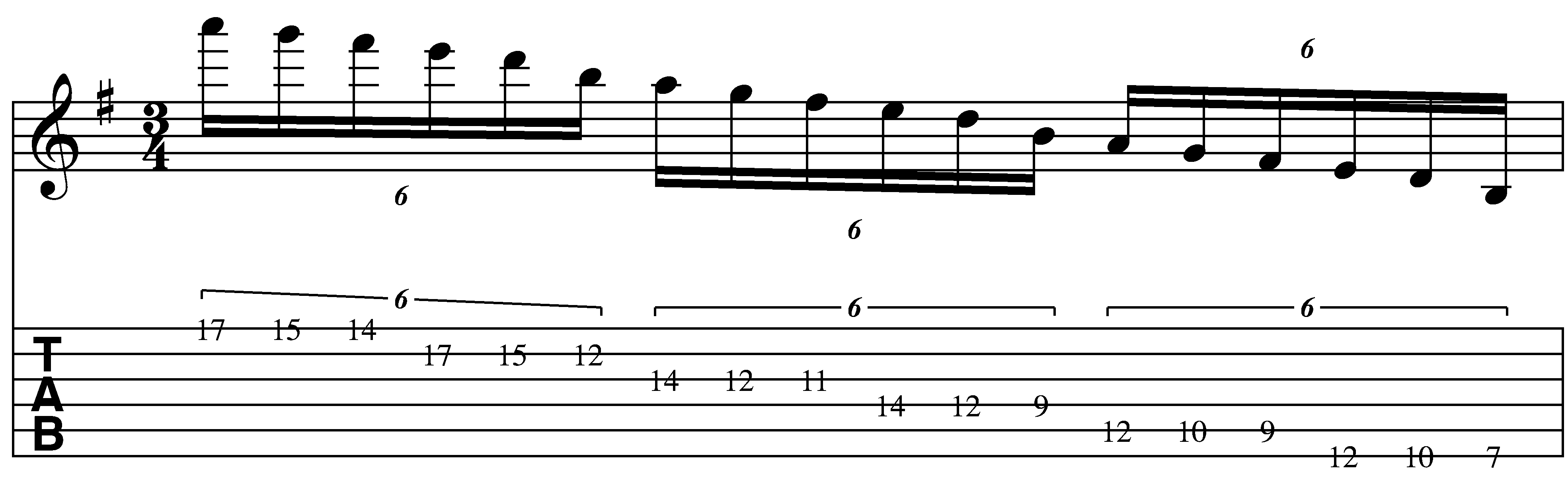
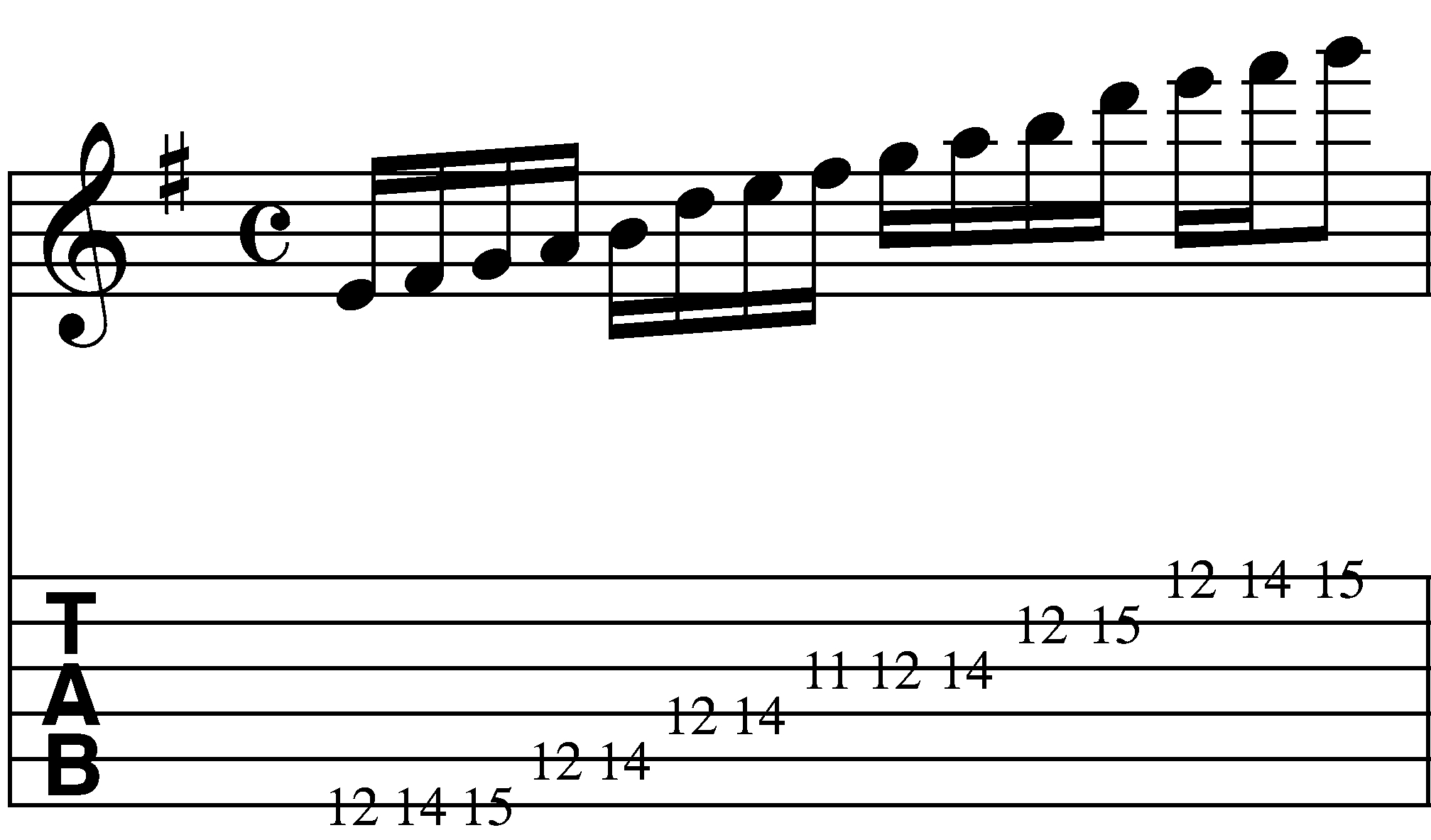
If you look carefully – you’ll see the only difference between the two is the F# and the G.   Both notes sound good against E minor, so if we combine them we get a six- note scale (E, F#, G, A, B, D).  Here is a sample fingering of the combined scales in the 12th position.
.

If that scale were fingered as a 2-string scale instead of a six- string box pattern – the same fingering pattern can be moved in octaves – thus eliminating the need for multiple fingerings. (This is the same approach I’m using on 8 string guitar btw).

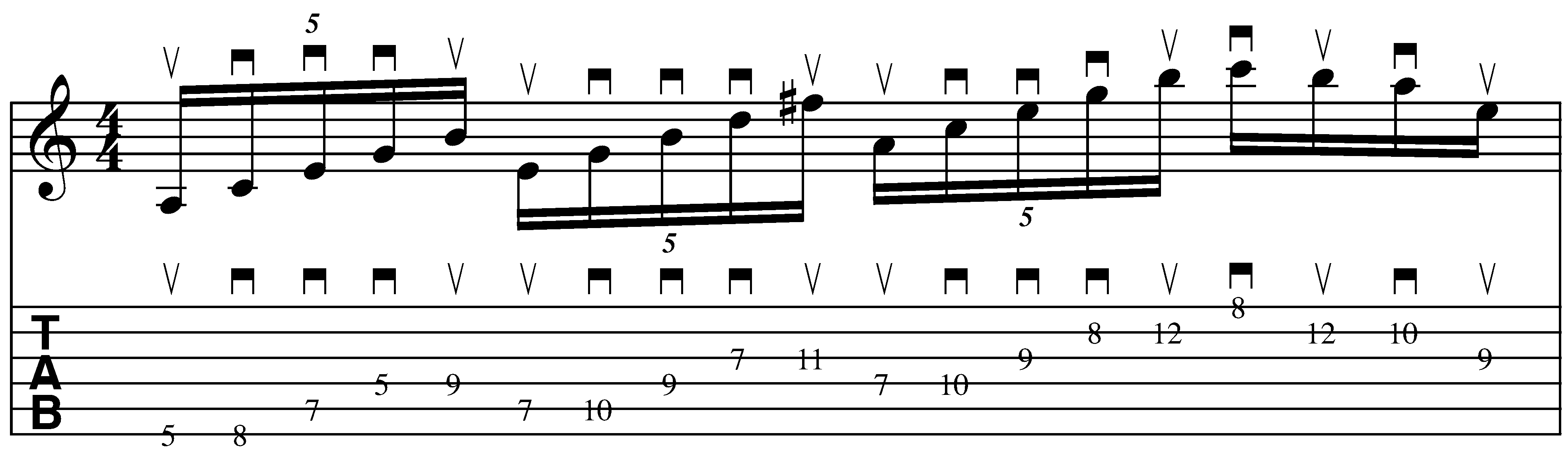
Here is an mp3 (note mp3s are a little glitchy in Safari – if it doesn’t play you may just have to reload the page) and notation/tab for the descending scale:

.

Sextuplet descending

.

.

* Fingering Note: I finger both patterns with the 1, 2 and 4 fret hand fingers on both string sets.

* Descending Picking Note: I play this with a modified sweep picking pattern

E string: up-down-up

B string: up-down-up

.

The picking pattern is the same for each string – but when I switch strings – it’s two up picks in a row.

Here it is  ascending:

Sextuplet Ascending

.

* Ascending Picking Note: I also play this with a modified sweep picking pattern

.

E string: down-up-down

A string: down-up-down

.

The picking pattern is the same for each string – but when I switch strings – its two down picks in a row.

If you’re used to alternate picking  – you can use that approach as well but I try to apply the same picking pattern to all three-note per string patterns.

.

Practicing the pattern

.

In addition to focusing on the timing of the notes – it’s very important to practice slowly and only increase speed when both the timing (are all the notes being played with rhythmic equivalence?), tone (i.e. can you hear all of the notes clearly?) and hand tension (is your hand should be as relaxed as possible?) are all working together.

I’ve written a whole series of posts on practicing  (Post 1post 2post 3post 4post 5post 6 and post 7) that I’d recommend checking out if you haven’t already done so – but the simple principle here is to pay attention to what I call the 3 T’s in Performance: Timing, Tone Production and Tension.

This particular approach is challenging – particularly if you’re not used to the stretch.  Just remember to practice in small focused increments and try to increase steadily over time.

.

The Tones:

.

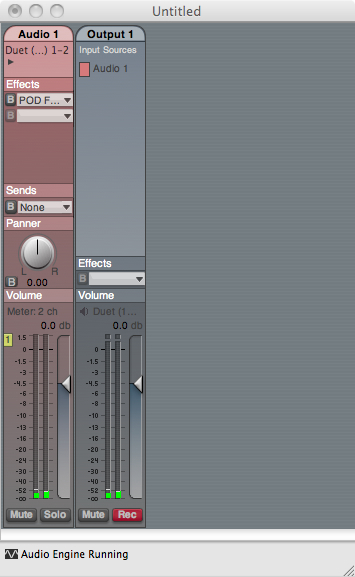
For those of you who are interested, tone on this recording was the same AU Lab/Apogee/FNH combination that I detailed here:

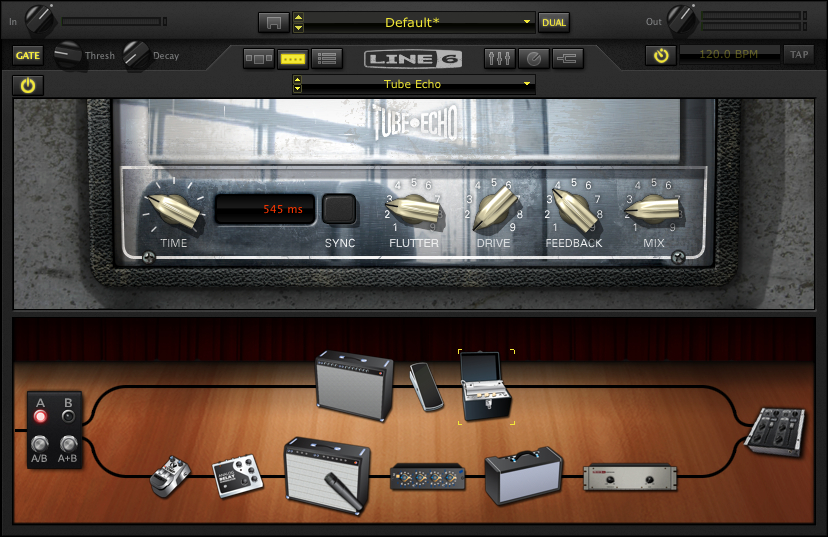
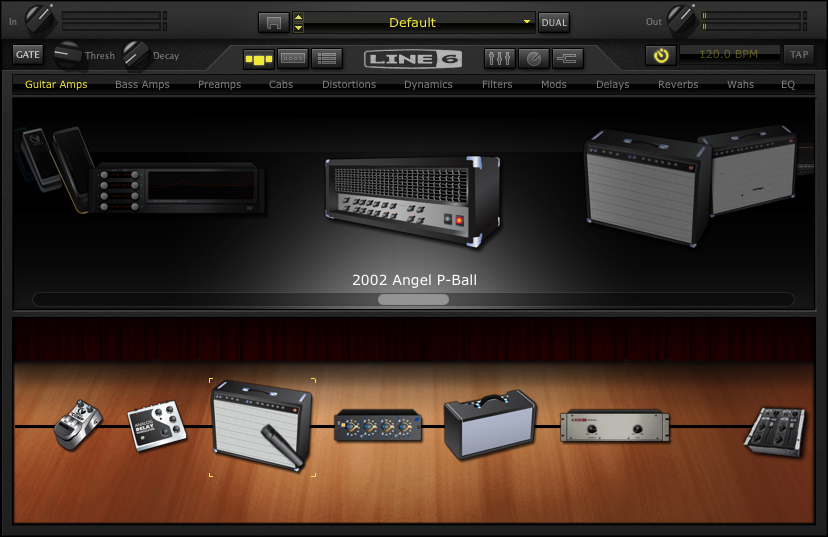
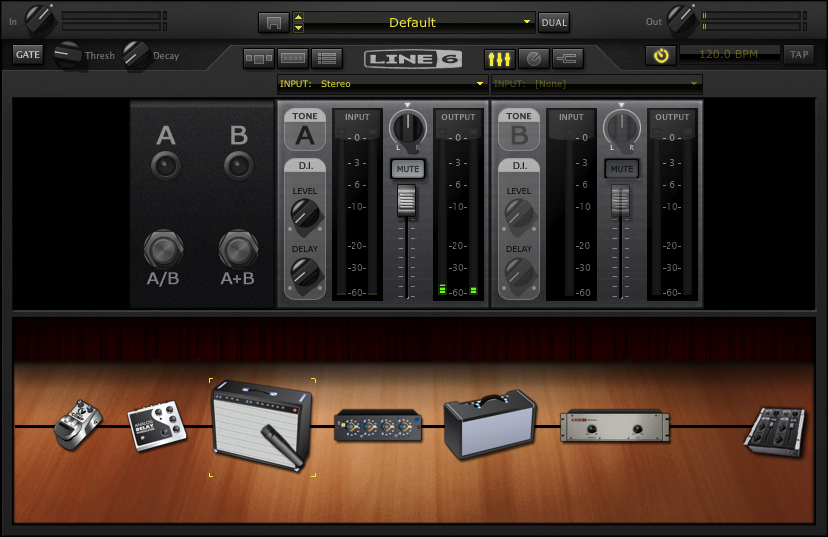
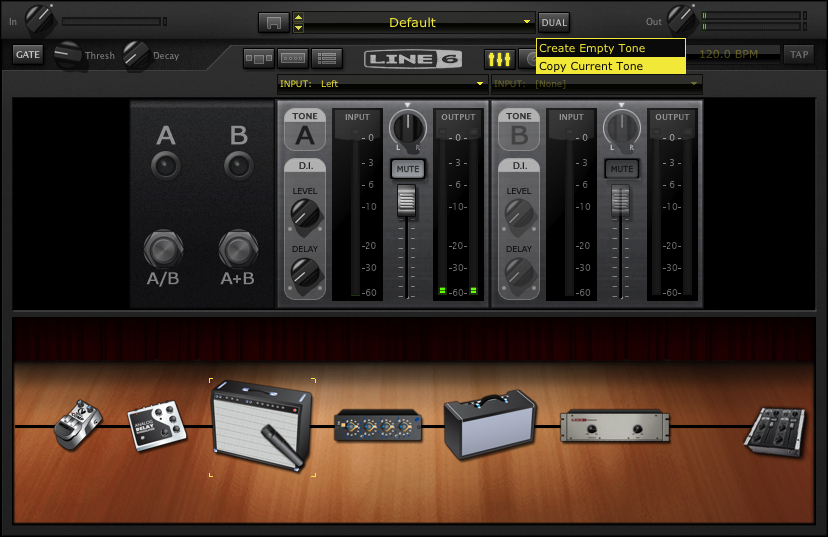
Here’s a screen shot of the Pod Farm setting (The tone can be downloaded from line 6 here):

.

That’s all for now

.

I hope this helps!  You’re free to download and distribute any of the lessons here but I maintain the copyright on the material.

I’m always looking for feedback on what people find useful and what they don’t so if you have any questions or comments, please feel free to e-mail me at guitar.blueprint@gmail.com

Warming Up: Finger Exercises, The 3 T’s And The Necessity Of Mistakes

Pedagogical Errors Were Made

One of the first lessons that guitar students are taught is the 1 note per fret 1-2-3-4 chromatic alternate picking exercise.  While this is typically presented  as an initial exercise to gain coordination – it has a very limited long run value.  As a static exercise, it  should be discarded from your regimen immediately because

.

you play what you practice

If you want to play semi-chromatic ideas at high speeds moving in 4ths – this is a great exercise to use.  But it’s a boring sound, a boring exercise and doesn’t translate well into everyday performance.

“But Scott”, you might posit, “it’s just  a warm up exercise.  It isn’t something to play at a gig.”  Then it’s a further waste of time as

.

everything you play should be something that translates to live performance

.

The Physicality Of Practicing or How To Lose A Gig

Here is a gig nightmare story that illustrates the point of proper technique versus strength.  Since the embarrassment here is all mine, all of the names will be on the record for my moment of shame.  Years ago when I was working at Sandy’s Music, one of my co-workers “Skinny Mike” Feudale wanted to see if I could play a gig with his rockabilly/psychobilly band – The Speed Devils. Mike is a great songwriter and the songs on the Speed Devil’s cd were really strong and lot of fun to play.  The Speed Devils had a gig come up in NY and needed a lead guitarist to sub in.  If it worked out – it could be a regular gig – but there were some rules.

.

1.  I had to look the part – fortunately the drummer Judd had a vintage bowling shirt I could squeeze into

2.  I had to play a vintage amplifier.  Fortunately I had just gotten my vintage Gibson amp back from Tom at AzTech electronics (truly an amazing amp guy) – which sounded and looked great.

3.  I had to play the Speed Devils guitar.  This was a hollow body that Mike had fixed up and completely vibed out (full flames and dice for volume knobs) with heavy gauge strings and high action to push the volume a little more.

We rehearsed the set once or twice and then went to the gig a couple of days later.

On the way from Boston to NY, I didn’t have time to warm up so I was doing some finger exercises to limber up my hands.  I was experimenting with a lot of grip master type things to strengthen my hands and try to fix my pinky (which was really quiet with hammer ons).  We got to the club and  I found out that there was no mike for my amp.  The only thing going through the PA was the vocals.

This is the point of the story that I should mention that while everything was fine when we had rehearsed at low volumes; my 15 watt amplifier could not compete with the rest of the band in a club setting.  As I was inaudible I started strumming louder, and with the live adrenaline kicking it, I started fretting harder as well.   Between the heavier string gauge, the higher action, the underpowered amp and the over-tensed playing- I blew my hands out by the second tune.

My hands were so shot that chording was difficult and soloing was all but impossible.  I limped through the rest of the performance – but nothing came out the way it was supposed to.  Needless to say, I didn’t get the gig – a sound decision by the band – but I was really angry with myself because I had unknowingly sabotaged myself before I even got there and had I taken a different approach – I would have been able to play the show much better and not let the band (and myself) down.

.

The Physicality Of Practicing (slight return)

Playing an instrument is a physical endeavour.  You can push your muscles too hard and hurt yourself badly playing the same things over and over. (Trust me – performance related injuries are not fun).

Having said that, this isn’t weightlifting.  You don’t need muscular hands capable of cracking walnuts to play guitar well – you need hands that can move  fingers quickly and independently –  a fast twitch muscle versus a slow twitch muscle. This leads to a little secret that students generally don’t get exposed to in rock guitar lessons

.

hammer on volume comes from the speed the fingers strike the string not the force

In terms of volume, the most problematic finger is typically the pinky.  One habit that I had to fix (and that I continue to see in a number of players) was the improper attack of the fret hand pinky on the strings. (In case you’re wondering about proper form, I’ve reposted some of the information from the Glass Noodles arpeggio post below).

.

Here’s a good way to visualize the fret hand finger motion you’re looking for:

Put the palms of your hands on a table.  Now without lifting the palms up, tap your fingertips one at a time on the table starting from the pinky and ending on the index.  You’ll notice that the fingers stay curved and that the large knuckle of each finger is responsible for the tapping.  This motion is what you’re looking for in this process.  Notice that you don’t need to hit the fingertips very hard against the table to get a crisp attack.

The concept of building up your hands like biceps – is just ridiculous.  The goal of guitar performance is to keep your hands relaxed so you don’t blow them out in a gig or on a session.

.

How I warm up now

When I warm up now – I play scales and arpeggios, switching between chord voicings of tunes I’m working on and improvising around various patterns at low tempos and paying strict attention to

.

The 3 T’s in Performance: Timing, Tone Production and Tension

(remember these – this awareness could save you untold time and pain later!)

.

In general –  you just want to make sure that all of your fingers have had a little blood flowing in them before you begin to play for any length of time.  I do this with a timer for 5 minutes (more or less depending on how my hands feel).

External warm up devices are kind of goofy to me.  Have you ever seen a runner go into a gym and max themselves out on a legpress before they went for a long run?  Do you really think that putting mechanized unfocused tension on a finger is going to make it play a musical passage more efficiently?

.

The necessity of making mistakes

Along with the forthcoming GuitArchitecture books, I have also put substantial time into  a general book of guitar technique.  In addition to discussing specifics of practice and performance methodology – I also took the 1-2-3-4 exercise and broke it down into every possible positional variation as a way to develop technique.  The book is currently 256 pages.  The majority of which are the 864 individual graphics that had to be created and placed in the text.

Midway through this process I started to question the mistake of basing any technical study on such an exercise – or the concept of musical exercises in general.  (Again the point isn’t to have svelte waistline or huge muscles – the point is to be able to play melodic and harmonic ideas more readily.)

I came to the conclusion that if the 1-2-3-4 example could be approached as a way to develop a systematic approach to generating both melodic ideas and melodic variation it could also benefit readers as a technical study as well.

.

Mistakes are teachable moments

It’s easy to see a mistake as something to learn from in a practice room session but harder to see it at a gig. If I walked away from the Speed Devils show and just said, “That gig sucked – so I must suck as a guitarist” I would have missed a great opportunity to see there was something very wrong in what I was doing. The gig taught me in addition to making sure that I had proper preparation and the right tools for the job that tension does not equal volume – and that lesson has been more beneficial to me than any lesson I could pay for.

.

I hope this is helpful to you!

Thanks for reading.

-SC

Guitarchitecture Post Featured In Guitar Player Holiday 2010 Issue – Quick Licks Section

It’s been a couple of productive days – The pentatonic/blues lick that was featured in the quick lick/rig du jour post has been featured in the Guitar Player Holiday 2010 issue. It’s the issue with Santana on the cover.  Thanks again to Matt Blackett  and the GP staff!

The long overdue Tubtime cd, “We Bleed The Sun And Make It Pay” – is finally up for sale on Itunes and on the CD baby tubtime page. Featuring the talents of Patty Barkas, Geof Chase, Joe Rauen and Keichi Hashimoto – Tubtime was the first project I was involved with that was based solely on of structured improvisation and in many mays was a cornerstone of what I do now. In addition to cd baby and Itunes – it’s also available on emusic should be available on Amazon and any other digital distribution service over the next several months.

Rough Hewn Trio @ CalArts was a big hit!  We should have video/audio up soon.

More info coing soon!  Thanks for dropping by!

AU LAB/POD FARM 2.0/LIVE LAPTOP RIG TUTORIAL PART 6 – Dual Rig Distorted Tones

In previous instances – I haven’t had a whole lot of success with running both A and B channels on a dual rig – but I thought I would try to steal a tone idea from Joe Bonamassa, and give it another shot – this time running a dirty and clean tone at the same time and blending the two for a more complex tone.

This post won’t be as in-depth as some of the other AU LAB posts I’ve done as I’ve detailed a lot of the process already.

As a starting point – here’s the DIST 2 rig:

The pedal configurations are very similar to what I set up here:

The wahs and volumes are both assigned to the same pedal so that 1 pedal controls both functions.  Ditto for the distortion and the reverse delays (usually off) which I can kick in for some grand psychedelia.

In the next version of this rig – I would probably set the Mix knob of the delays to the expression pedal so I could dial in the amount of reserve delay I wanted when it was on.

As another option – you could also set the volumes independently – one to the short board volume and one to an expression pedal –which would allow you to have a clean tone and dial in the amount of distortion you wanted a la Jim Thomas of the Mermen.

EQ

One of the biggest problems I’ve had when using dual rigs in the past is a weird boosting of certain EQs.  Particularly on the low E string.  In this case what I’ve done is to cut the bass in the 80 Hz by 6db on the Graphic Eq in the signal chain.    This was an idea I got from a REALLY cool acoustic post that Bob Brozman had on his site detailing his live rig and correlating specific Eq ranges to strings.  It worked pretty well and helped tame the woof on the low E string.  There’s also a 3db boost at 750Hz and a 2db cut around 3k.

Kicking on the distortion on the distorted side take out some of the extreme low-end and compresses the low E string in a pleasing way.

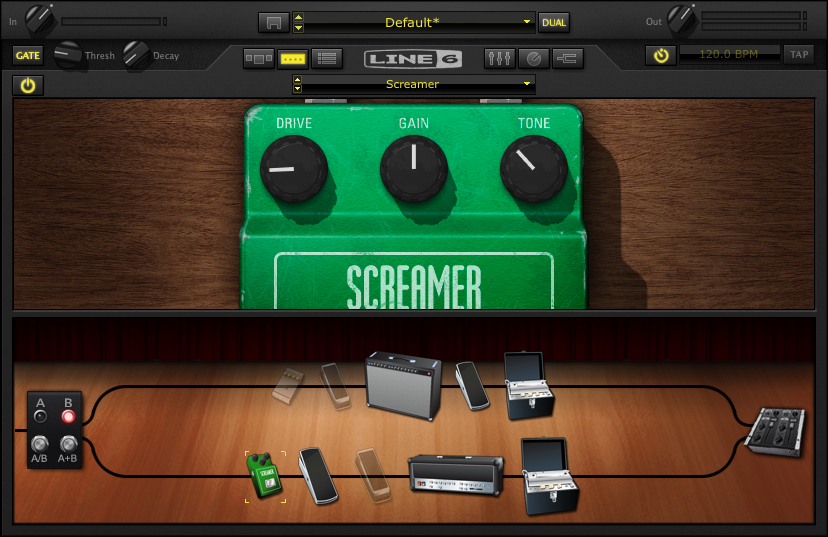
The Tube Screamer settings I’m using are:

Drive 24%

Gain 66%

Tone 13%

Another thing that has helped with this is splitting the Stereo send.  I’ve panned these to 27% on either side.

Here’s the mixer setting:

Another important note – this is running out mono to an amp – so that will further affect the sonic split.  I’m running the rig in stereo because I like the sounds of the effects in stereo better than mono – but ultimately this is going down to a mono signal.

Here are the Silver Marshall Model Settings:

In live use – the Atomic is really bass heavy – so I’ve cut out a lot of the bass here and typically have it at 3-5 depending on how the room sounds.

Gaining Perspective

Another problem that comes up with laptop guitar – or modeling in general is that it’s really easy to overdo it on the gain.  When I got my first distortion pedal – I remember turning all the knobs up 100%.  It took a while to get to where I started experimenting with eq and gain staging to try to get some saturation – but keep the overall definition.  The use is gig specific –  If the sound requires a lot of gain and sludge – then I go for that – but in general – I definitely try to scale it back a bit.  I can always add an overdrive or distortion pedal if I need to increase the amount of gain – .

And the clean settings:

The volume is a constant adjustment issue here. (also note the eq differences from the settings in the AU lab tutorial).  Here – I’m just trying to find some good mix of dirty with a bit of clean for clarity.

Here is a short example of the tone – this uses the clean channel from the fender and the dirty channel from the Marshall.  This was just the setting with the same AU lab settings in the AU lab posts – recorded directly in AU lab.

One thing I realized after I tracked this is that the feedback on the Tube echo is set a little too high.  I usually leave them both around 4 so it gets a little verb/slapback sound.

I have the tube drive on the Fender off for this example but can switch it on for extra gain if I need it.

In the meantime – you can download this tone here.

Hopefully this has been helpful.  I’ll be doing a post on using AU lab as an acoustic pre for live use soon.

Thanks for dropping by!

-SC

Recycling Shapes or Modular Arpeggios for Fun and Profit

When improvising, I need to be able to access sounds immediately.  One tool that I use for this is Sonic Visualization (which is really a cornerstone of the GuitArchitetcure concept).  In Sonic Visualization – I associate shapes with sounds so that I can make changes, modify  or develop ideas in real-time.  Here’s one example of this in action and has some cool ramifications for application.

For the audio examples – I’ll be using a Line 6 variax AC 700 strung with D ‘addario .012 phosphor bronze strings – to show that this can be performed on an acoustic guitar.  I used the line 6 as I could record it direct into the laptop in AU lab and not have to use a microphone.

First:  Here’s an example of this approach played at tempo.

Now let’s start slowly and see how to get to that point.

Let’s say we were going to solo over an A5 chord.

Since there are only 2 unique notes (A and E), you could play almost any type of scale or arpeggio over it – but for a moment – let’s look at a minor tonality.

If I was playing straight up metal, I might just play an A minor arpeggio over it.  There’s nothing wrong with this sound – but I want to spice it up a little.

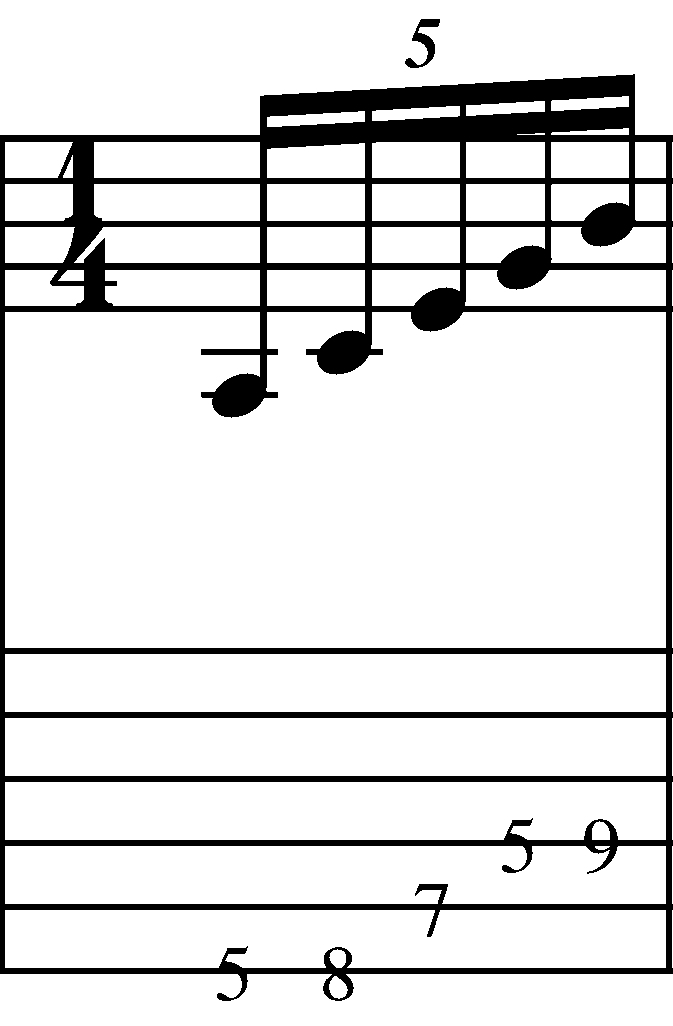
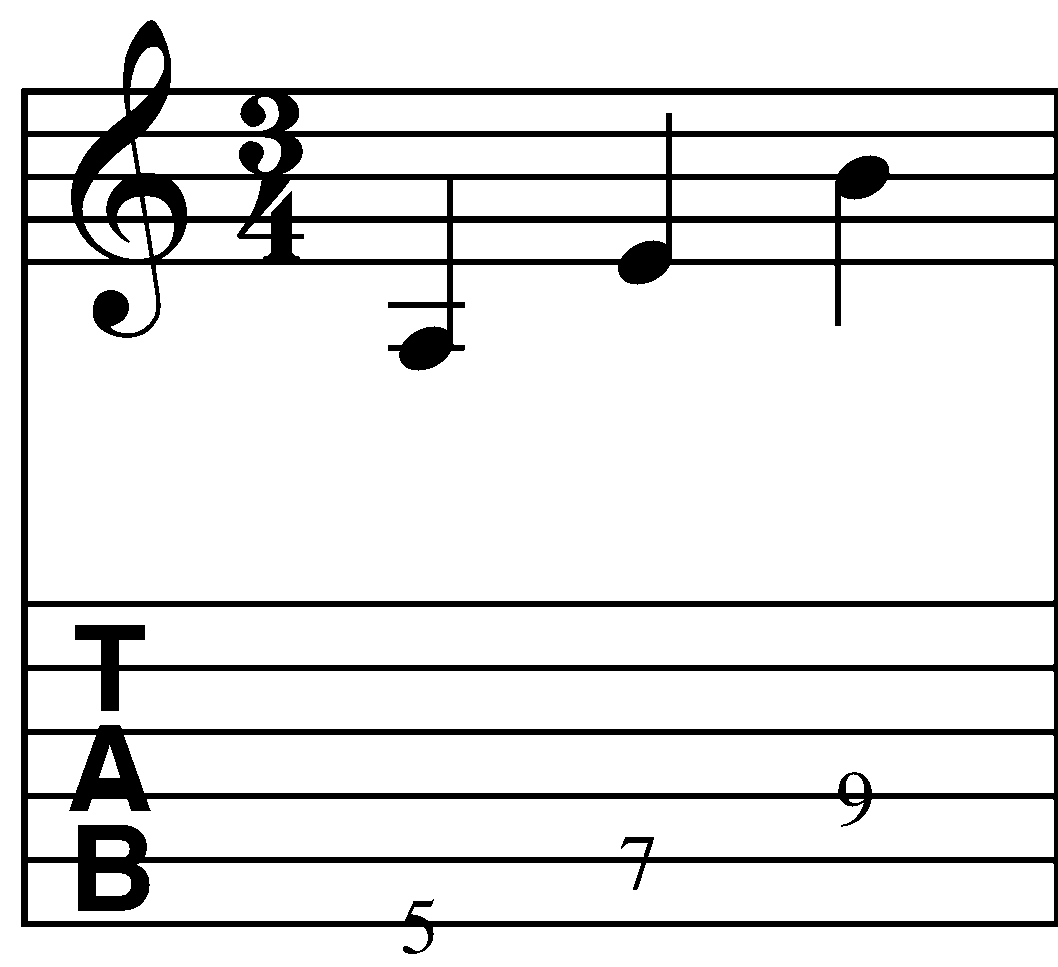
One thing I’ll do as a starting point is to extend the arpeggio. Instead of just playing an a minor triad (A, C and E) – I’m going to add a G and a B to the arpeggio creating an A minor 9 sound.  Here’s the form I’ll be using:


Some quick notes:

Fingering – basically I view this as a positional form so I’m using the 1st finger for notes on the 5th fret, 2nd finger for the E on the 7th fret, 3rd finger for the C on the 8th fret and the 4th finger on the B on the 9th fret.

Hand tension – As your playing through this shape – you want to keep your fretting hand as relaxed as possible.  The more tense your hand is – the more difficult this will be to play.

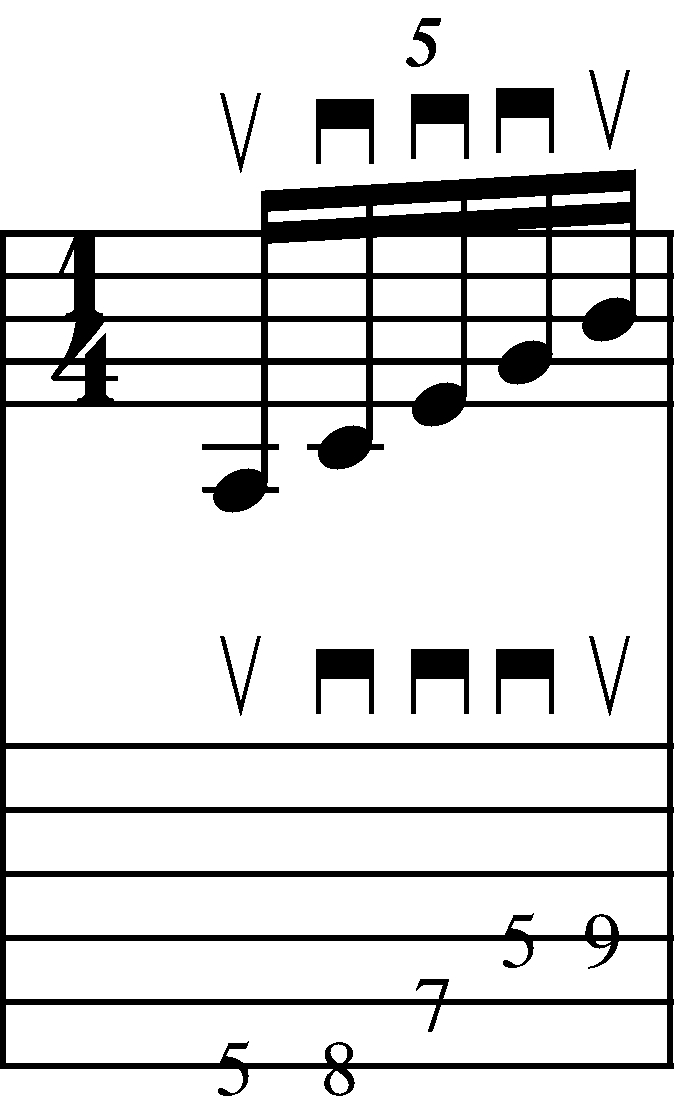
Picking – you could play this with alternate picking or all hammers – but I’m going to recommend a specific picking pattern for this arpeggio:

Notice that it starts on an upstroke and then uses all down strokes.  This picking pattern will become very useful as this process continues – but if you don’t have a lot of experience sweep (or rake) picking, you’ll need to keep your picking hand relaxed and work on getting the attacks all happening in time.

Timing – you’ll notice that this is a group of 5 (i.e a “Quintuplet” or “Pentuplet”) which means that you are playing 5 notes to the beat.  The  key here is to make sure that you are playing the notes in an even division – (i.e. the same length of time for each note and each space between the notes).

Here’s an audio example of just the arpeggio – first played slowly and then at tempo.

Note: in some browsers (Safari in particular)  the audio doesn’t always load properly in the new window.  If you just refresh the window it usually comes up the second time.

Obviously a metronome will help with consistency – but it you’re having trouble with hearing the division of 5 try the following.

Set up a metronome.

Set the click at a slow enough level that you can play 1 note per click.

Accent the first note and tap your foot to the first note only

Play each note of the arpeggio on a metronome click.

On the repeats – accent the first note and tap your foot to the first note only.  If you can – try to figure out the tempo of the first tones only (a tap tempo feature will help a lot here) and now try playing the arpeggio with only the first accent.  This is annoying to do for long periods of time – but can help a lot for short practicing cycles.

You may want to just start with this one arpeggio and work on synchronizing both hands – that alone could take some time if you’re unfamiliar with this technique.

From a performance perspective – you’re looking for uniformity of attack with regards to both timing and volume.


Recycling shapes

Here’s an interesting observation – If we play the same minor 9 shape we just used but this time move it to the 5th of the chord (In this case the pitch E or an E minor 9 arpeggio ), we get the notes E, G, B (which were also in the last arpeggio)but we get 2 added pitches D and F# which here act as the 11 and 13. This creates an over all A minor 13  or A Dorian sound.

Short cut #1 – when playing over a minor or minor 7th chord – you can play minor arpeggios from both the root and the 5th of the chord over it.


Short cut #2 – A minor 9 + E minor 9 = A minor 13 or an A Dorian sound.

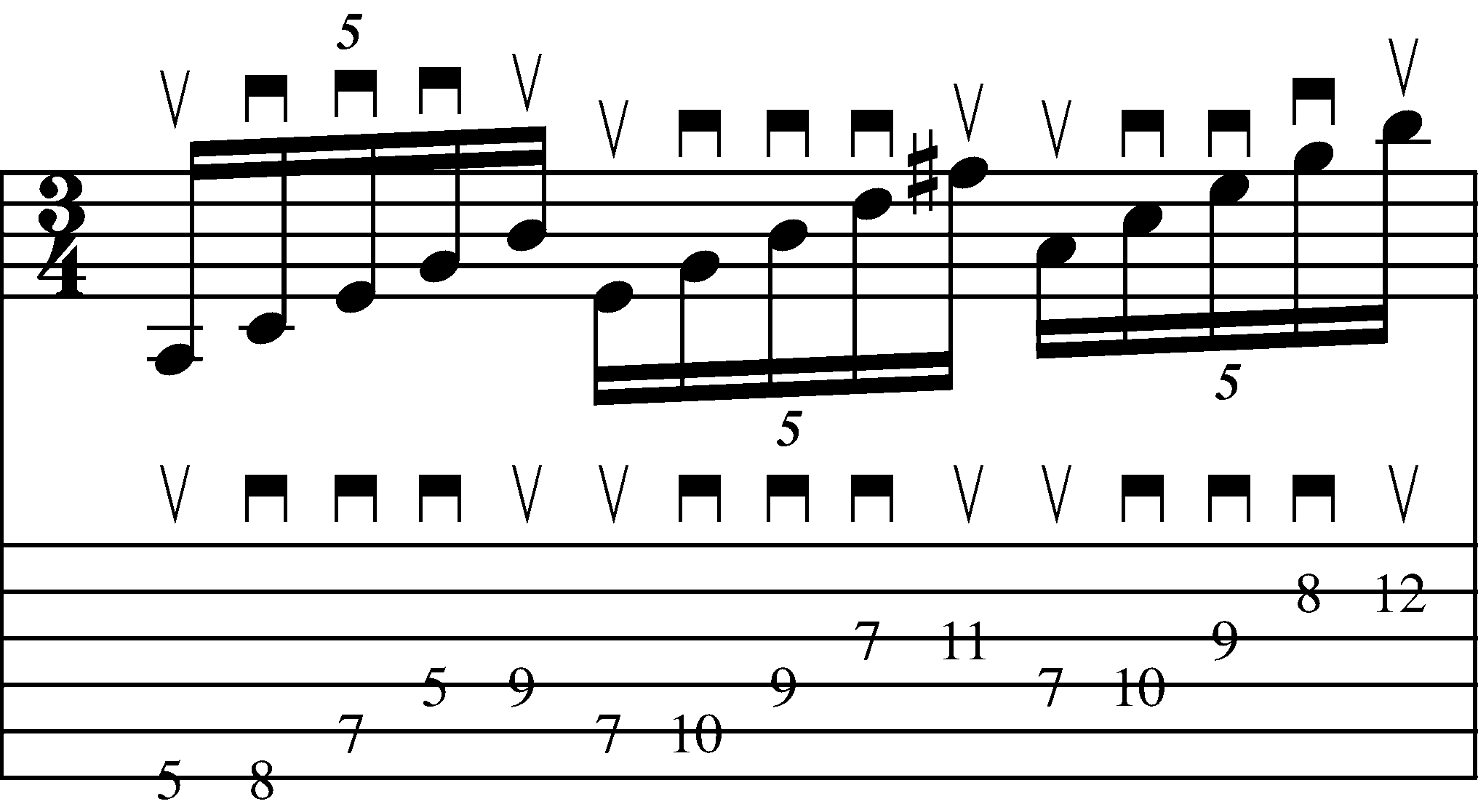
Let’s look at this in notation and tab:

Notice that by using the same picking pattern –  the upstroke of the B in the first arpeggio leads right into an upstroke on the E of the E minor 9 arpeggio.  The fingering pattern is the same as before.  Once you get the A minor 9 form down – you may need to practice the transition between the A minor 9 and the E minor 9 forms.

Here is an mp3 of the transition played at two tempos.

Finally, we can repeat the same thing on the last A of the A5 chord (although the fingering pattern will have to be adjusted by a fret for the G-B string tuning).

Here’s the top A minor 9  arpeggio played by itself – first slowly  and then faster.

As before, the same picking pattern is utilized to add continuity between the forms.  You could end on the B or pick another pitch the end the form on depending on what chord you’re playing it over.  Here I’ve chosen E.

Here’s the full arpeggio played at tempo.

You say Tomato I say Major

So now that we’ve looked at a minor example let’s use a major example.

If I sharp the C and G notes of the A minor 9 arpeggio –I have an A Major 9 arpeggio – which also works over A5.

Here’s the A major 9  arpeggio played slowly  and then faster.

Here’s another interesting observation – If we play the same major 9 shape we just used but this time move it to the 5th of the chord (In this case the pitch E or an E major 9 arpeggio ), we get the notes E, G#, B (which were also in the last arpeggio) but we get 2 added pitches D# and F# which here act as the #11 and 13.  This creates an over all A major 13 augmented 11 or an A Lydian sound.

Short cut #1 – when playing over a major or major 7th chord – you can play major arpeggios from both the root and the 5th of the chord over it.


Short cut #2 – A major 9 + E major 9 = A major 13 (#11) or A Lydian tonality.


Since I’ve broken this process down a great deal with the A minor 9 process – I’ll just highlight the lick idea here.  You could end on the B or pick another pitch to end on depending on what chord you’re playing it over.

Here’s the full arpeggio played at tempo.

Here’s the A major 9  arpeggio played slowly  and then faster.

Taking it out

As a final idea – let’s apply this concept to extending the overall tonality.

Here’s a transcription of an improvisation working off of this idea – but using a B minor 9 for the third chord of the sequence.

First let’s look at the A5 chord again:

Now – let’s realize that instead of building these structures off of the Root – 5th – root of the chord – that we could use other tones – for example here I’m going to use the Root, the 5th and the 9th:

Here’s a transcription of an improvisation working off of this idea – but using a B minor 9 for the third chord of the sequence.

Here’s the full arpeggio played at tempo.

Here’s the  arpeggio played slowly  and then faster.

C# is obviously not part of an A minor tonality – but by sneaking it into the arpeggio sequence it gently nudges the overall tonality to me in a pleasing way.

The point is to not get too hung up on rules or shortcuts – but instead to have a series of modular sounds and approaches that you can use as the need comes up.

I’ll be posting more about these types of approaches in the weeks and (more likely) months ahead.  Just remember in general to keep your hands loose, your rhythm tight and your attention focused – but if this is your first time to the site I’ve posted a number of things on practicing in general which may be helpful to you.

I’m always looking for feed back on these posts!  If possible – please take a minute to comment or drop me a pm @ guitar.blueprint@gmail.com to let me know if these are useful to you.
Thanks for dropping by!


Laptop Guitar Setup Or Notes From A Live Show
For the Onibaba show last night, I decided to use only the laptop rig that I’ve been working with and not use the typical Atomic/Pod X3 rig that I use.  The short of it is that from a technical standpoint – it worked without a hitch.  I don’t think that anyone noticed that there weren’t “real amps” there and tonally it fit the bill.  There were, however,  a few little quirks that needed to be sussed out.

1 The room we were playing in had very high ceilings and was really boomy.  Sounded great on acoustic instruments – but I had to be really careful of not getting washed out tone wise.

2 The midi assignments for Sooper Looper stopped working when I used the FBV express board.  The board worked fine – but I’ll probably just return it and get a breakout box instead.  The FBV Express can control about 6 functions – but ultimately I’d like to control about 10-12 functions – so I think it makes more sense to just trigger it manually.

.

No one size fits all

.

As I’ve mentioned here, there are a number of variances that occur with modeling:

“I’m in the process of working on sounds on the X3 Live for the show – and tweak PA vs. amp sounds.  One thing I’ve noticed with modeling is that there are at least 4 different scenarios for setting up sounds:

1.  Headphone patches – i.e. practicing or recording

2.  Playing through an amp at low volumes

3.  Playing through an amp at high volumes

4.  Playing through a PA.

You might think that there wasn’t a lot of variance – but the differences between these parameters are huge.  I have patches that sound mediocre at low volumes and sound really good when the volume gets goosed a bit.  Headphone patches that work well at home and fall apart live – and vice versa.”

So along this line  I knew I’d have to tweak some patches I’d been using  and make some new ones for the show.  I decided to pull some patches I liked and demo them at low volumes in my apartment and then try to fix anything glaringly wrong at the show.

.

Reverse Engineering or Start with the output

.

A while ago I mentioned I bought a back up Atomic amp from Guitar Center for $149.  The listing was for an Atomic Reactor 1×12 – but both the 50 watt and the 18 Watt are 1×12 – so what I got in the mail was the 18 watt.  Initially, I was a little disappointed – but given that you can run it on 115V OR 240V – I figured it was a good investment and that in a worse case scenario I could sell it and make my money back.

When I set up my sounds – I set them up on the 18w.  There’s no master volume knob – it just runs at 18 watts – but I could control the output with my duet and set things up at a low volume.

The Atomics in general are very bass heavy so I knew from the get go I’d have to roll a lot of the bass down and tweak other mid and high levels.

AfterI got a tone set up on a lark I decided to try to run it stereo.  I pulled out the 50 watt Atomic and there were some weird grounding issues.  While I was trying to suss that out I decided to A/B the amps – and see if there was a difference.  Suprisingly  the 18 Watt sounded MUCH better than the 50 watt.  The 18 watt does use different tubes (2 EL34’s and 1 12ax7a as opposed to the 6l6GCs and the 12AX7 in the 50 watt) – but I think that just having the amp full bore made a big difference.  The more I cranked the output volume on the Duet – the more the tone sagged in a very pleasing way.  Also the 18 watt is DEAD quiet so that solved the issue of the loud fan on the 50 watt version.  I knew the 18 Watt was loud but I wasn’t sure if it was fully going to be able to hang with drums, bass, amplified trombone and the awesome sonic terror of Vinny Golia – but it did.

.

IMPORTANT DUET NOTE: 

When setting output volume on the unit – if you choose “Instrument amp” – you get a flat volume that you are unable to control – by setting it to “Line Level” you can adjust the output with the knob on the Duet.

.

I think the Duet output went to ten – I never went higher than 5 – and at one point turned down to 3.  18 Watts was more than enough for the gig.  The drag now is I like the amp enough to sink more money into it and have I have the desire to get the amp re-tolexed.  Maybe with like a fender tweed or something.  In the meantime I used the 18 watter as a low volume template and could then tweak it further in the space as I needed to.

.

Organization is key

.

One reason to go digital is the rigs themselves they take up so little disk space you could save hundreds of them and have individual configurations for almost any situation.  This is also one reason NOT to go digital as it’s easy to get overwhelmed with options instead of narrowing it down to a few.

A great feature about POD Farm 2  is that you can create and organize folders with drag and drop ease.

For example let’s begin by looking at how I built my live setup:

First – here’s a sample patch:

.

Now if you look over to Setlists:

.

You’ll see I created a folder marked ATOMIC.

.

Tip:

If you want to control changing setlists from a Midi Controller – Just control click on the up or down arrow, in the Setlist window and then press the midi controller feature you want to use to control it

.

Within that setlist, I have a series of patches – I name them all Atomic – so I can find them easily if I have to.

.

Another Tip:

If you want to control changing Programs (i.e different patches) within a setlist  from a Midi Controller –  Go to the top of the screen – where the patch name is:

Just control click on the up or down arrow to the right of the Patch name, in the and then press the midi controller feature you want to use to control it.

I’ve set it up to be used withthe up and down arrows on the right of the shortboard.  I decided to have one  folder marked Atomic and then just scroll up and down through the folder to get to patches. You could just as easily set up multiple folders and organize patches (and if you have only 4 tones per Setlist – you could just A/B/C/D them with the shortboard and use the up and down arrows to go between setlists – just like the setup on the PODs).

When I used the pod X3 with the docking station in the Atomic – one feature I would use a lot was the dual rig feature with one rig with a speaker sim – and one with none – It gave the sound a lift in a pleasing way.  At the gig I just ran them all through the 4×12 IRs I’ve been using and it sounded fine – I may put the IRs on a bus and mix the two to see how it sounds – but this is the rig I’m using as of this post.

Clarity wise – I felt it had a noticeable advantage over the X3 – but I’ll have to do more experimenting.  In a future post – I’ll detail a Dual distortion tone I’ve been developing and discuss some more specifics with using a laptop as a guitar processor live.
.
Thanks for reading!
.
-SC

AU Lab/POD Farm 2.0/Live Laptop Rig Tutorial Part 4

Welcome back!  In this post, I’ll be integrating SooperLooper into the AU LAB Live rig I’ve been building.  If you haven’t read the earlier posts about this (part 1, part 2 or part 3) you may want to read those before continuing on.

An Important note about sample rates:

From here on out – if you’re going to be incorporating other audio into the session (including looping in SooperLooper) – you’re probably going to have to set the sample rate back to 44.1 (and set the Impulse responses back to 44.1).  If I’m not looping –  I try to set the rate as high as I can, but know that it’s going to have to get bounced down to 44.1 for recording, etc.

SooperLooper:

The next step is to set up Sooper Looper to be able to loop audio.  I’m going to put SooperLooper on a bus, so I can either send audio to it or bypass it as need be.

In AU LAB – – > Sends – Select BUS 1.

A new Bus Strip will open.

Under Effects – scroll down and select Sooper Looper.

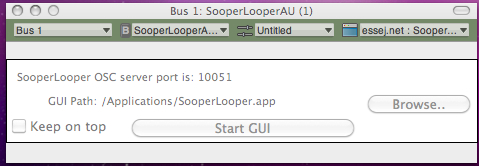
When you do this, Sooper Looper will open up in 2 windows:

The first window:

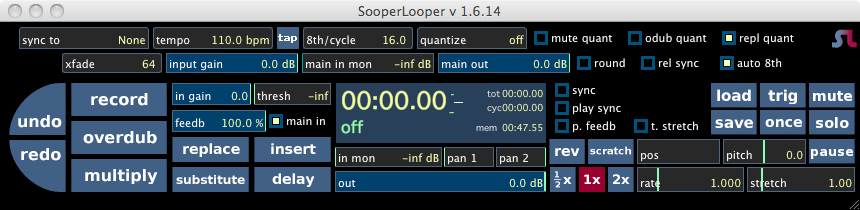
And then the GUI

A Quick Tip:

When using sooperlooper, you need to increase the “main in mon” to hear any output.

You can set up multiple stereo loops in Sooper Looper by selecting them from the SooperLooper menu.

I like to have 4-5 different loops set up.

You could do more (your limits are your system resources- but since I’m on a laptop – I want to be able to see everything (and this takes up some screen space).

Another Quick Tip:

You can set SooperLooper up for midi controls but the key binding options will help you navigate the window pretty easily as well.  They’re found under SooperLooper Preferences.

For example – you need to select an audio loop in order to record to it.  If you look at the bindings above you’ll see that select_loop_1 is currently set to “1”.

So if you’re on the active SooperLooper window and hit 1 – you’ll arm track 1. (Note the new line to the far left of SooperLooper that shows which track is armed for recording)

Make sure to save your AU Lab session.

Setting up MIDI control in SooperLooper:

In the first SooperLooper window:

Click on the arrow next to essej.net: Sooper.

Select Midi Effect Editor

Set the MIDI Source to the controller you want to use and set the Midi Channel to the channel you want to use.

Note:

If you don’t see the controller then go to Audio-Midi Setup application (or you could find it in the Application – –  > Utilities folder) and click on the MIDI tab.

To Set up specific commands in Sooper Looper, you’ll need to go to Midi Bindings under SooperLooper Prefereces:

MIDI Binding Steps in SooperLooper:

Click “Add New”.

Select a command under “Command/Control”.

Click “Learn”.

Press the midi control you want to use to control the function.

Click “Modify”.

When you get all the functions learned  – click Save.

Also make sure you save bother you SooperLooper AND your AU LAB session.  All the midi functions should be there when you reopen it – but if they aren’t and you’ve saved them in Sooper Looper – you can just “Load” them back in.

AU Lab : Transport

Here’s something pretty cool – the Window tab in AU Lab – select Show Transport

That will bring up the following window:

The MIDI Clock Source will probably default to Disabled – If you set it to Internal – you can use to tap tempo feature to synch effects or Sooper Looper  by tempo.  Pretty cool feature!

(Also in the the Window tab in AU Lab there are some other useful options particularly –  Show CPU Load – which brings up a handy visual meter to let you see how your project is doing with it’s resources.)

Additional Resources: SooperLooper

SooperLooper is an incredibly deep plug in.  It would be easy to devote a 5 part article to just the feature set and use of it – The  Sooper Looper forum is also extremely helpful with various Sooper Looper issues, and also has a specific SooperLooper AU LAB section.

Next time – I complete the rig (for now)

You can find all of the laptop guitar rig posts on the Blueprints tab on the top of the page.  Once on the blueprints page – just scroll down to the Laptop Guitar Rig section.

Thanks for reading!


AU Lab/POD Farm 2.0/Live Laptop Rig Tutorial Part 3

Hello again.

If you haven’t read the first or the second posts about setting up POD Farm in AU Lab, you may want to review those first.

Automating Parameters with MIDI Learn:

Now let’s complete the clean guitar setup and then automate some parameters in POD Farm.

First I’m going to delete the delay and add a volume pedal.  You’ll find it under “Dynamics”.

It could just as easily go before the amp, but in this case I want to put it between the amp and the delay, so I’ve deleted the Analog delay and placed a Tube echo after the volume pedal.

Next I’ll add a wah.

And an overdrive pedal.  I’m going to have a full on distortion tone on the other channel – but this gives me another tonal option.

Across the Very top of the Pod Farm Window (labeled Audio 1: POD Farm 2 (1))

You’ll see 4 tabs underneath that window reading from left to right:

Audio1 –> POD Farm 2(1) –> Untitled –> Line:6 POD Farm 2

Select the arrow to the right of Line:6 POD Farm 2 and scroll down to Midi Effect Editor:

You’ll notice that the MIDI Source is None – which in this case means that the shortboard is getting power and sending midi, but it’s not being received by POD Farm/AU Lab.

I’ve selected the POD short board for the MIDI SOURCE, and will keep it on midi channel 1

POD Farm: Midi Learn – Volume

Now that the midi signal from the shortboard will get to POD Farm, I can use the Midi Learn function.

Let’s start with the volume pedal.

If I select the volume pedal in the signal chain a close up of the pedal will open up in the window above the signal chain.

Since I want to control the volume of the pedal  – I want to cntrl – click the level knob on the pedal.

That brings up the following option:

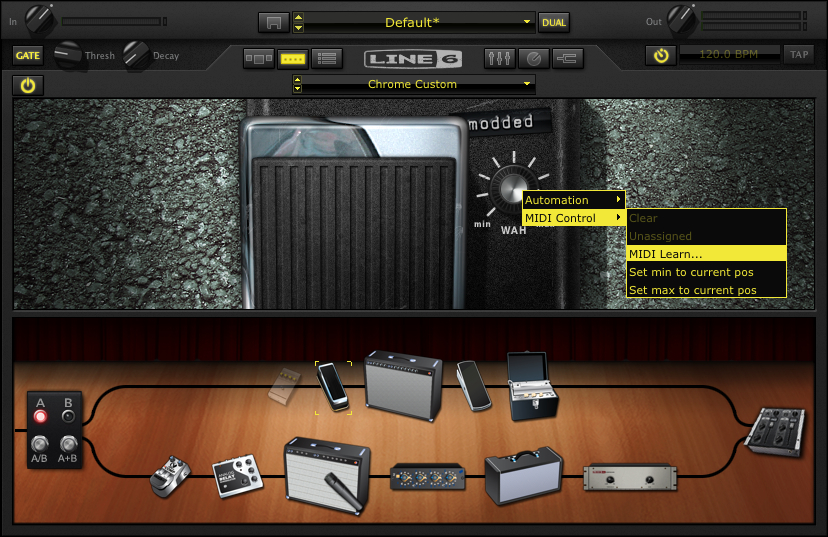
Choose MIDI Control – – > MIDI Learn.  Now if I move the volume pedal with my foot the level on the screen will change as well.

(If you make a mistake you can choose the “Clear” option above MIDI Learn and repeat the process.)

Note:

If you wanted to do this with a distorted amp and roll off the gain, you could select the amp and cntrl – click the Gain knob.  Even better, with the “Set min to current pos/Set max to current position” you could use the volume pedal for subtle variations in gain.

POD Farm: Midi Learn – Volume

Let’s see how this works with the Wah pedal.

First, as opposed to the volume pedal, which is always on, I want to be able to turn the wah pedal on and off.

The “secret” here is to automate the On/Off button under the “Gate” Button.

By selecting the MIDI Learn function and pressing down on the toe switch, that switch now turns the pedal on and off.

Next, with the toe switch on – I’m going to set the volume pedal to control the WAH sweep.  Just cntrl-click the actual wah switch for MIDI Learn and move the pedal.  The pedal will now control the sweep.

I like the Chrome Custom pedal, but don’t like the extreme high end, so I’m going to limit the scope of the sweep.  I’m going to turn the knob to 85% or so and then cntrl- click, but this time instead of selecting MIDI Learn, I’m going to choose “Set max to current position”.

Now when I sweep the wah it only goes from 0-85%.  This is really useful if you only want to filter a specific bandwidth.

I’ll set the Overdrive to an on off setting – the same way that I did with the wah.

That is enough for a general clean tone.  Now onto…

The Dirty Channel:

I’m going to spend a lot less time on this as I’ve already shown how to set up and automate effects on the clean side.

Here’s the default set up:

A brief note on tone:

In distorted models, you can create amps with gain structures that you could never create feasibly in the real world.  One problem I hear a lot is the desire to crank the gain and cut all the mids.  That creates a particular sound – but it’s not one that cuts through very easily.  The overdrive will boost the channel a bit in general, but it’s easier to ADD distortion live than it is to take it away.  Again, louder isn’t always better.

Basically I’m using the same Volume, Wah and delay as the clean channel above.  The only differences are in the amp and overdrive pedal (and that I’ve moved the placement of the volume pedal.)

Here’s the overdrive setttings:

POD Farm: Midi Learn – A/B Switch

The next step is to set up a midi command to be able to switch from the A to B channel.

The secret here is to click on the mixer button so the A/B Box appears in the window above the rig.

All I have to do then is cntrl-click the A/B button and select a button on the shortboard and then it’s all set.

Save your Bacon:

Hopefully you’ve saved your POD Farm patch and your AU Lab settings, but if not saving them both are very self explanatory.

Let’s start with POD Farm:

Click to the left of Default and save as

In this stage, you can also make whatever notes you want as well for later reference which is a nice feature.

Another really cool thing about AU Lab is that when you save AU lab – it saves the settings on all of the effects in AU Lab.  So save OFTEN.

That’s it for this post.  In the next post, I’ll add Sooperlooper into the rig.

You can find all of the laptop guitar rig posts on the Blueprints tab on the top of the page.  Once on the blueprints page – just scroll down to the Laptop Guitar Rig section.

Thanks for reading!

AU Lab/POD Farm 2.0/Live Laptop Rig Tutorial Part 2

In the previous post, an AU Lab session (or document) was established and an A/B POD Farm patch was created.  In this post, I’m going to start modifying the patch to make it more useable.

Building the rig:

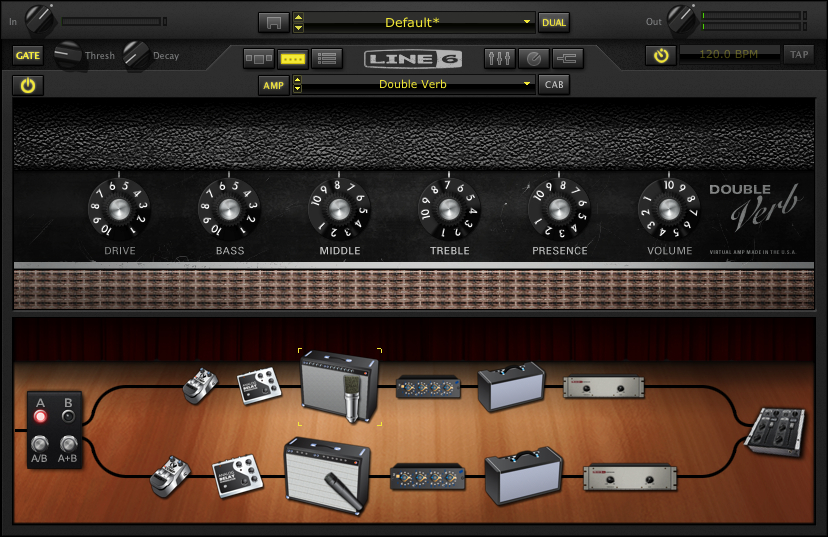
Okay first I’m going to swap out the amp. I like the Double Verb instead.

You can drag and drop amps into the signal chain, but if I click on the down arrow to the right of the AMP field – I can just scroll down to the Double Verb amp.

Here are the settings I’m using.

If you look in the left hand corner underneath the input knob on POD Farm, you’ll notice the global gate is on.  I tend to use the global gate at a low setting.  This came from a ruined session where I switched to a distorted sound that DIDN’T have a gate on it and squealed between each phrase.  Now I keep the master gate on to not worry about that scenario.

Compression:

Louder isn’t always better.

Compression has it’s place – but I try to play dynamically, so the compression is the first thing to leave the POD farm signal chain.

If you click on the compressor in the signal chain and then ctrl-click on the compressor you’ll get the following options.

Just select Delete.  If you change your mind you can drag and drop another compressor from the menu into the signal chain.

Another point to bring up, is that when I use an amp and effects – I try to use the same signal chain for all of them.  (This comes from years of playing gigs and having a bunch of effects pedals going through the same amp and reverb).

Looking at this set up, the mic pre (currently between the amp and the reverb) would be something that I would want in the channel signal chain in AU LAB instead of POD Farm – so that it was the same mic pre for any amp I’m using.

The first step is to delete the mic-pre from the POD Farm signal chain (using the same method as the compressor above).

Next (in AU LAB) in the Audio 1 channel – click on the arrow in the next available Effects field below PODfarm .

If you scroll down to Line 6, you’ll see that in addition to PODFarm, that each individual component of a PODfarm rig has been broken down into components (aka POD Elements).  This is so you can use individual effects or amps as an AU plug in which much less of a CPU hit than loading in another instance of POD Farm.

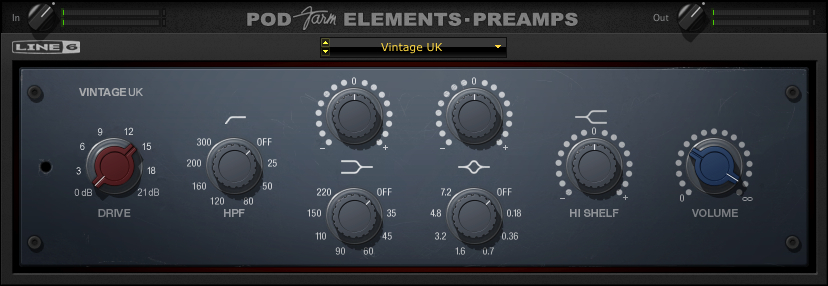
In this case choose: POD Farm Element – Preamp.  I’ve chosen Vintage UK.

Reverb:

The reverb would also be something that I would want in the channel signal chain – so that it was the same reverb for any amp I’m using.  (The other advantage is that by placing the reverb outside of POD Farm, when I change amp settings the reverb doesn’t cut off with the amp change.)

Delete the Reverb from the signal chain in POD Farm (using the same method as the compressor and the mic-pre above).

Next, (in AU LAB) in the Audio 1 channel – click on the arrow in the next available Effects field below POD Farm Element – Preamp.

If you scroll down to Line 6, choose: POD Farm Elements – Reverbs.  I’ve chosen Standard Spring.  Here are the settings I’m using.

Impulse Responses:

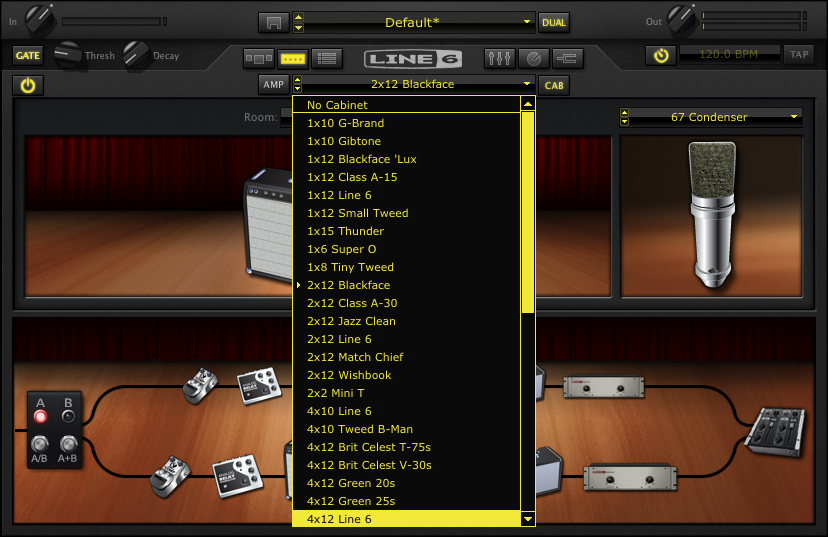
I use impulse responses rather than the speaker sims in Pod farm.  So the next thing I’m going to do is get rid of the speaker cabinet/microphone on Podfarm.  If I click on the CAB button – I’ll get a list of speaker cabinets and microphones used.  If I scroll to the top of the list – I’ll get “No Cabinet” which deactivates both the cabinet and the microphone.

Next, (in AU LAB) in the Audio 1 channel – click on the arrow in the next available Effects field belowPOD Farm Element – Reverbs.

Scroll down to Lernvall Audio and select LA Convolver.

Now I’m going to select to impulse responses to act as a speaker simulator.  I’ve experimented with putting multiple instances of LAConvolver  on buses and running multiple cabs, but since I want to run SooperLooper in the bus (Where I can loop guitar and any other incoming audio source), I’m going to just stick with a stereo set.

Select a channel and hit “choose” under file. In this case I’m using the free RedWirez cabinet I got as part of their birthday giveaway.

I want to use a high sample rate to get better definition so I’ve chosen 88.2 K. (or 2 times 44.1k)

I’ve chosen an SM57 on the grill and a KM84 about 3 inches behind the back of the amp.  I tend to start with the Wet gain in the center position and adjust as necessary.

A brief note:

I’ve mentioned this in other posts, but since I want to use the same speaker cab for all the amplifiers, I’m going with a 4×12 for familiarity.  Normally,  I wouldn’t match a double verb up with a 4×12, but since I’m going to be running a Marshall on the other channel, I’m going to just have to adjust the clean amp signals accordingly.

Fixing the Sample Rate:

If you notice, the plug in sample rate and the Impulse response sample rates are different.  It will work like this – but I want to use the highest sample rate I can for the most clarity.  There is a delicate balancing act that comes between high sample rates, stability and useable latency, so everything here is a compromise.

I’ll fix this with Audio Midi Set up :

First: click on AU Lab and look under Preferences.

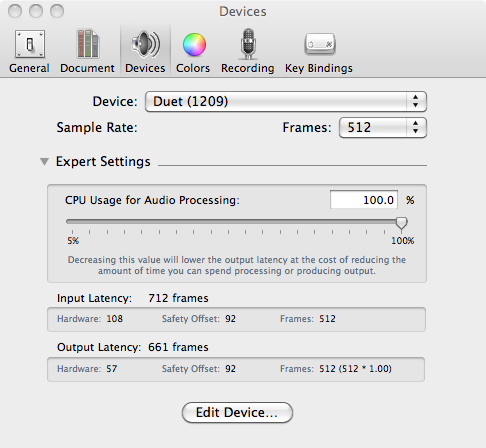
When the preferences window opens, click on the tab marked Devices.

If you click on the expert setting arrow you’ll see something like the following:

Another  brief note:

I’ve set the CPU to 100% to avoid glitches.  I’ve also set the latency really high to attempt to keep the system stable.  Depending on the system and interface that you’re using, you’ll probably have to lower the setting to the point that you get glitching (or max out the memory) and then bring it up a little bit from there.  With the headphone out of the Duet – even with these settings the latency is suprisingly tolerable.

If I click Edit Device – that opens up the Audio-Midi Setup application (or you could find it in the Application – –  > Utilities folder)

Note:  I’ve changed the output format to 88.2.

Going back to the Audio-midi sample rate window – it shows:

An Important note about sample rates:

I’ll mention this again – but if you’re going to be incorporating other audio into the session (including looping in SooperLooper) – you’re probably going to have to set the sample rate back to 44.1 (and set the Impulse responses back to 44.1).  If I’m not looping –  I try to set the rate as high as I can, but know that it’s going to have to get bounced down to 44.1 for recording, etc.

While I’m on the preferences Tab I might as well set up recording to the external drive.  Click on the tab marked “Recording”.

Now if I click on the “Rec” button at the bottom of OUTPUT 1 in AU LAB, it will record whatever I do to the Lacie as the default location, in a 24 Bit AIFF format.

With the changes in this part of the tutorial, the AU Lab Input looks like this with some sample input:

You’ll notice that the output is a little off balance.

If you pan it to the left you’ll balance the signal out a little more. Here’s the setting with all the global FX so far.

You may want to save the AU LAB session now, if you haven’t done so already.

In the next session, I’m going to complete the clean channel effects and automate some parameters with the Midi Learn function to be able to make changes to the sounds with the Line 6 Shortboard.

You can find all of the laptop guitar rig posts on the Blueprints tab on the top of the page.  Once on the blueprints page – just scroll down to the Laptop Guitar Rig section.

Thanks for reading!

AU Lab/POD Farm 2.0/Live Laptop Rig Tutorial part 1

I’ve received a couple of pm’s regarding AU lab and setting it up for live use (largely from this post).  With an upcoming film accompaniment and a need to re-tool the setup a little I thought I would build a rig from scratch and explain how I’m doing everything.

About this tutorial:

What I am doing here is documenting the specific process for building a working rig for myself.  If you don’t have this specific hardware/software set up, you could adapt the process to whatever you’re using.

AU LAB

First a bit about AU Lab.  If you have a Mac Laptop with an OSX operating system, you have access to one of the greatest FREE music applications imaginable.  AU Lab is a program that was designed for AU (Audio Unit – The Mac proprietary plug in standard – much in concept like a VST) developers to test plug ins – but since it can accept audio and midi, has buses and can record audio – this makes it a great tool.  The fact that it does it with a fraction of the CPU of something like Logic makes it essential.

AU Lab can be installed as part of the SDK package that is on your OSX install discs.  If for whatever reason you can’t find your discs – you can go to the Apple Developer site and sign up for a free account.  You can then download the SDK package.  Once it’s installed it should be in folder called “Developer” but if you just search for “AU Lab” on your computer it will come up.

3/10/11 NOTE:

The UA LAB Version used in all of these examples is AU LAB Version 2.1.  Version 2.2 has not been stable on my system with the Apogee Duet.  You can read about the current version here – but in the meantime – you may want to download X code 3.2.2 Developer’s Tools – which has version 2.1 of AU Lab, if it isn’t installed on your system already.

Before getting into the setup – here are the tools I’m using for this particular rig:

Hardware:

FNH custom guitar:  You can find a full review of this guitar here.

Macbook Pro- 2.4 Ghz Intel Core 2 Duo.  This is actually a 2008 version I got with a killer educational discount.  15” with firewire 400 and 800.  This Macbook has had 4 gigs of memory that I got from OWC (although the first slot can take 6 gigs so I’ll probably upgrade that before the end of the year) and a  Seagate 500 gig 7200 rpm drive.  I underestimated just how important the internal drive was to performance but it made a very big difference.

Lacie Rugged Drive – This is the 320 gig bus powered version.  Also 7200 rpm.  I run it on the firewire 800 port and use it to record to.  It’s a little overkill – but I can use it for larger sessions as well.

Apogee Duet – Firewire interface.  No other A/D converter near this quality in this price range –  No question about it.

Line 6 FBV shortboard Mark II – Line 6 got it 100% right with this product.  Smaller than the old shortboard, but can be USB powered.

Ilok key – This is required for the Ilok version of POD Farm.

Korg nanokey – The keyboard for this is a little toylike – but I’m not a keybaordist.  It is velocity sensitive and kits in a laptop bag – and I can use it to trigger patches, samples, etc.  I think all the Korg nano products are really cool.  Very useful item.

Apiotek USB 2.0 Quad – This is an express card adaptor that opens up 4 usb slots on the computer.  Since the Macbook only has 2 USB ports and I have at least 3 usb devices – this is REALLY helpful.

Software:

I’m not going to go into any real depth on the software – As I’ve already covered it in other posts.  (Look under LAPTOP GUITAR RIG)

AU Lab

POD Farm 2 Platinum (And POD Farm Elements)

La Convolver

RedWirez

SooperLooper

Absynth

Optional Software:

If using this hardware you will probably have to use one or all of these at some point.

Audio Midi Setup (Mac application – part of the OS install)

Apogee Maestro (Comes with the Duet)

Line 6 FBV Control (Free download from Line 6)

This will be a VERY indepth tutorial – but I want to make sure I cover everything I can.

AU LAB Set up

Go ahead and launch AU Lab

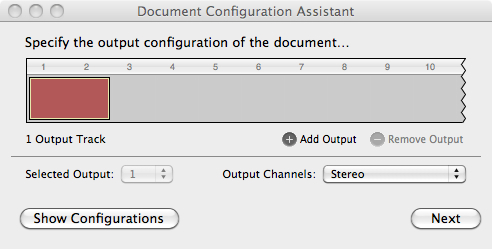
You’ll come to a screen that looks like this:

I want to run a stereo channel out so this is fine.

Click Next.

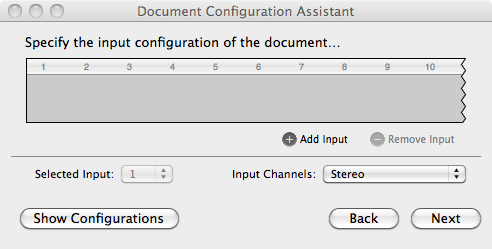
Notice that the default setting has no input – you can change this later – but it helps to set it up now.

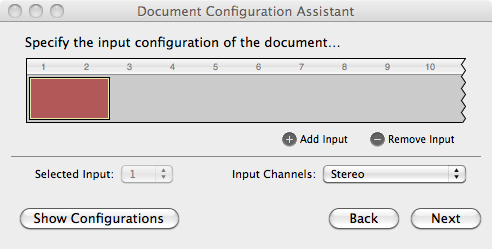
Click Add Input.

Now you have an input source.

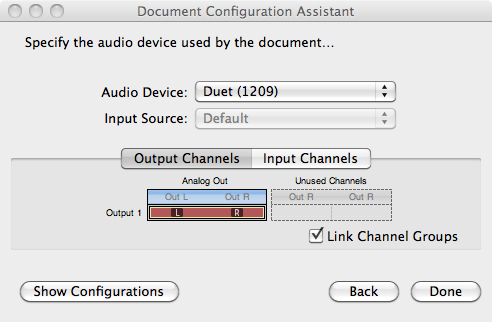
Click Next

In this case I’m using the Duet – so it came up as the default in the Audio Device field.  If you’re not seeing the audio device you want to use open Audio Midi Setup (in the Applications – –  > Utilities folder) and make sure you see it there.

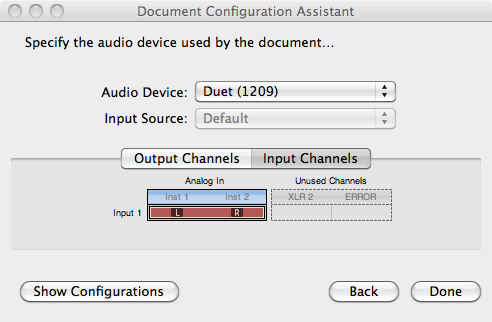
You can check the input channels if you’d like:

This shows that the Left/Right 1/4” ins are both available.  I’ll only be using Instrument 1 for the guitar – but I could run another instrument if I wanted to.

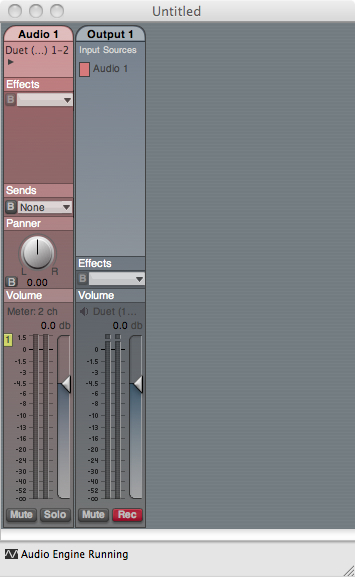
Click Done:

Here’s the screen that you’ll get.  If you have your guitar plugged in and strum a chord – you should hear it.  But this is going to get a lot better.

POD Farm set up

The first step is to set up PodFarm:  Click on The Effects tab in Audio 1 and scroll down until you get to Podfarm 2.

Here is the default screen in Pod Farm:

What I’m going to do here is set up a clean and distorted channel that I can switch back and forth between and automate some of the parameters so I can change them with my shortboard.

The First thing to do is get the input sorted out – since I’ve selected a stereo input in AUlab – the default in Pod farm will be a stereo in.

I only need  the left channel in as I’m only using 1 guitar for right now.

If I click on the arrow to the right of input: Stereo and scroll down to left – I now have the Instrument 1 Input on the Duet (left) as the input for this channel.

Before setting everything up – I’ll take a second to get in tune:

If I click on the tuning fork to the right of the Line 6 logo – that opens the Tuner.

If I click on the tuning fork to the right of the Line 6 logo – that opens the Tuner.

The next step is to create a Dual Tone.   In this case I’ll just copy the current tone.

Click the dual button and select Copy Tone.

And you’ll get this:

Note that the input has stayed the same as well.  Now my single guitar input can be used on both channels.

In general, I haven’t had a lot of success with 2 channel sounds – particularly distortion – which tends to overload in unpredictable ways.  I’ve clicked on the A+B Switch to turn it off.

A brief note:

The first time I did this – the guitar tone was digitally distorting (unpleasantly) so I brought the output of PodFarm down and it was still an issue.  Once I opened Apogee Maestro – the utility that came with the Apogee Duet – I realized that the signal coming out of the Duet was too hot.

It’s important to realize that the more items you add, the more things you’ll have to check when it goes wrong.

You may want to save the AU LAB session and save the POD Farm patch as well.    AU Lab saves all the settings of all the effects in the session, but you need to save the patch in POD Farm to load it again.

In future sessions, I’m going to create an A/B rig with a dirty and clean guitar amps and use the midi learn functions to change effects with the Line 6 Shortboard.

You can find all of the laptop guitar rig posts on the Blueprints tab on the top of the page.  Once on the blueprints page – just scroll down to the Laptop Guitar Rig section. 

Thanks for reading!