AU Lab/POD Farm 2.0/Live Laptop Rig Tutorial Part 3

Hello again.

If you haven’t read the first or the second posts about setting up POD Farm in AU Lab, you may want to review those first.

Automating Parameters with MIDI Learn:

Now let’s complete the clean guitar setup and then automate some parameters in POD Farm.

First I’m going to delete the delay and add a volume pedal.  You’ll find it under “Dynamics”.

It could just as easily go before the amp, but in this case I want to put it between the amp and the delay, so I’ve deleted the Analog delay and placed a Tube echo after the volume pedal.
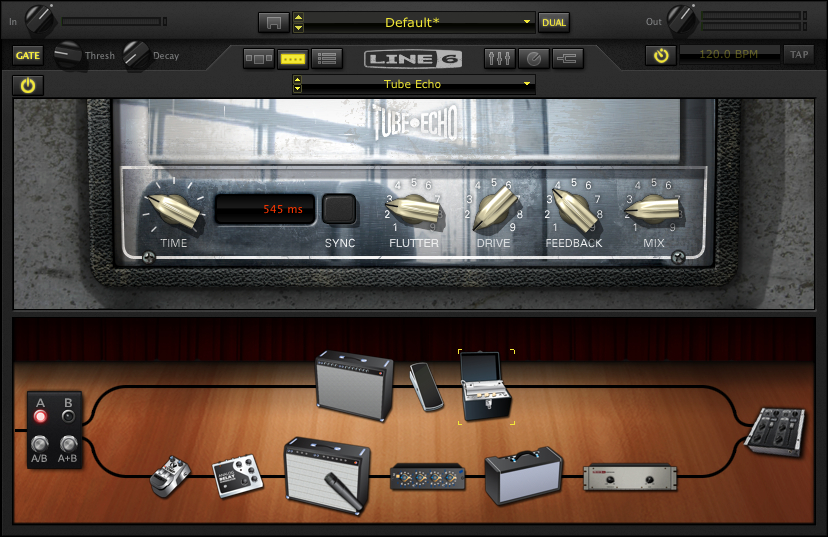
Next I’ll add a wah.

And an overdrive pedal.  I’m going to have a full on distortion tone on the other channel – but this gives me another tonal option.

Across the Very top of the Pod Farm Window (labeled Audio 1: POD Farm 2 (1))

You’ll see 4 tabs underneath that window reading from left to right:

Audio1 –> POD Farm 2(1) –> Untitled –> Line:6 POD Farm 2

Select the arrow to the right of Line:6 POD Farm 2 and scroll down to Midi Effect Editor:

You’ll notice that the MIDI Source is None – which in this case means that the shortboard is getting power and sending midi, but it’s not being received by POD Farm/AU Lab.

I’ve selected the POD short board for the MIDI SOURCE, and will keep it on midi channel 1

POD Farm: Midi Learn – Volume

Now that the midi signal from the shortboard will get to POD Farm, I can use the Midi Learn function.

Let’s start with the volume pedal.

If I select the volume pedal in the signal chain a close up of the pedal will open up in the window above the signal chain.

Since I want to control the volume of the pedal  – I want to cntrl – click the level knob on the pedal.

That brings up the following option:

Choose MIDI Control – – > MIDI Learn.  Now if I move the volume pedal with my foot the level on the screen will change as well.

(If you make a mistake you can choose the “Clear” option above MIDI Learn and repeat the process.)

Note:

If you wanted to do this with a distorted amp and roll off the gain, you could select the amp and cntrl – click the Gain knob.  Even better, with the “Set min to current pos/Set max to current position” you could use the volume pedal for subtle variations in gain.

POD Farm: Midi Learn – Volume

Let’s see how this works with the Wah pedal.

First, as opposed to the volume pedal, which is always on, I want to be able to turn the wah pedal on and off.

The “secret” here is to automate the On/Off button under the “Gate” Button.

By selecting the MIDI Learn function and pressing down on the toe switch, that switch now turns the pedal on and off.

Next, with the toe switch on – I’m going to set the volume pedal to control the WAH sweep.  Just cntrl-click the actual wah switch for MIDI Learn and move the pedal.  The pedal will now control the sweep.
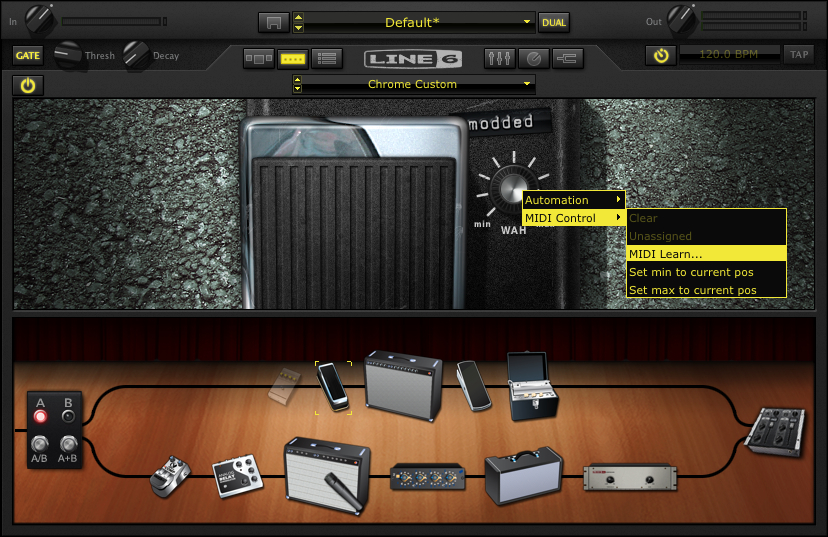
I like the Chrome Custom pedal, but don’t like the extreme high end, so I’m going to limit the scope of the sweep.  I’m going to turn the knob to 85% or so and then cntrl- click, but this time instead of selecting MIDI Learn, I’m going to choose “Set max to current position”.

Now when I sweep the wah it only goes from 0-85%.  This is really useful if you only want to filter a specific bandwidth.

I’ll set the Overdrive to an on off setting – the same way that I did with the wah.

That is enough for a general clean tone.  Now onto…

The Dirty Channel:

I’m going to spend a lot less time on this as I’ve already shown how to set up and automate effects on the clean side.

Here’s the default set up:

A brief note on tone:

In distorted models, you can create amps with gain structures that you could never create feasibly in the real world.  One problem I hear a lot is the desire to crank the gain and cut all the mids.  That creates a particular sound – but it’s not one that cuts through very easily.  The overdrive will boost the channel a bit in general, but it’s easier to ADD distortion live than it is to take it away.  Again, louder isn’t always better.

Basically I’m using the same Volume, Wah and delay as the clean channel above.  The only differences are in the amp and overdrive pedal (and that I’ve moved the placement of the volume pedal.)

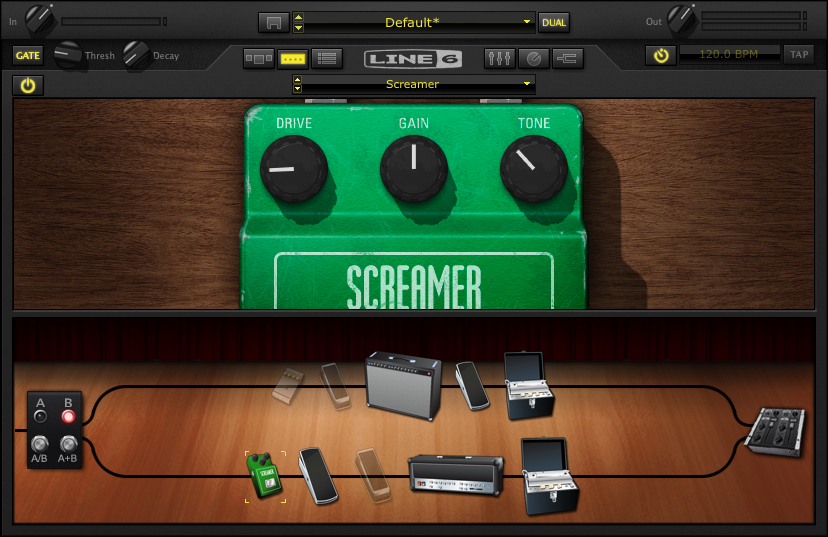
Here’s the overdrive setttings:
POD Farm: Midi Learn – A/B Switch

The next step is to set up a midi command to be able to switch from the A to B channel.

The secret here is to click on the mixer button so the A/B Box appears in the window above the rig.

All I have to do then is cntrl-click the A/B button and select a button on the shortboard and then it’s all set.

Save your Bacon:

Hopefully you’ve saved your POD Farm patch and your AU Lab settings, but if not saving them both are very self explanatory.

Let’s start with POD Farm:

Click to the left of Default and save as

In this stage, you can also make whatever notes you want as well for later reference which is a nice feature.

Another really cool thing about AU Lab is that when you save AU lab – it saves the settings on all of the effects in AU Lab.  So save OFTEN.

That’s it for this post.  In the next post, I’ll add Sooperlooper into the rig.

You can find all of the laptop guitar rig posts on the Blueprints tab on the top of the page.  Once on the blueprints page – just scroll down to the Laptop Guitar Rig section.

Thanks for reading!
AU Lab/POD Farm 2.0/Live Laptop Rig Tutorial Part 2

In the previous post, an AU Lab session (or document) was established and an A/B POD Farm patch was created.  In this post, I’m going to start modifying the patch to make it more useable.

Building the rig:

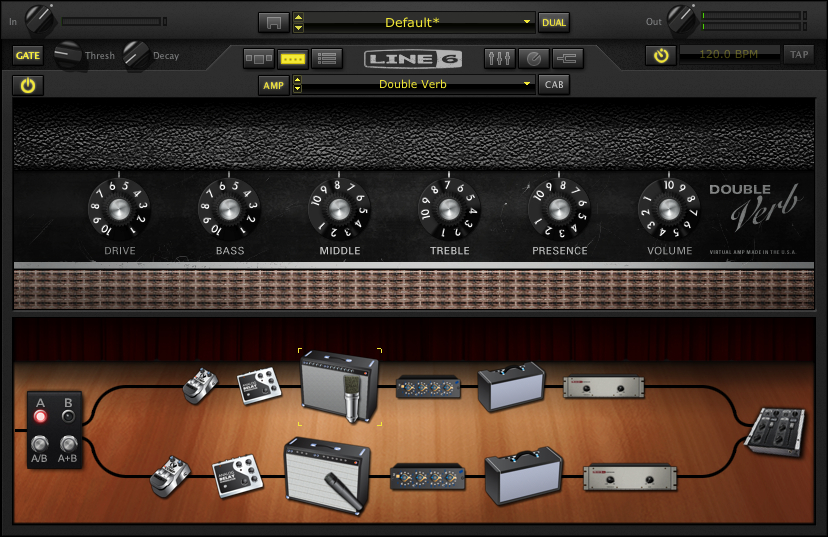
Okay first I’m going to swap out the amp. I like the Double Verb instead.

You can drag and drop amps into the signal chain, but if I click on the down arrow to the right of the AMP field – I can just scroll down to the Double Verb amp.

Here are the settings I’m using.

If you look in the left hand corner underneath the input knob on POD Farm, you’ll notice the global gate is on.  I tend to use the global gate at a low setting.  This came from a ruined session where I switched to a distorted sound that DIDN’T have a gate on it and squealed between each phrase.  Now I keep the master gate on to not worry about that scenario.

Compression:

Louder isn’t always better.

Compression has it’s place – but I try to play dynamically, so the compression is the first thing to leave the POD farm signal chain.

If you click on the compressor in the signal chain and then ctrl-click on the compressor you’ll get the following options.

Just select Delete.  If you change your mind you can drag and drop another compressor from the menu into the signal chain.

Another point to bring up, is that when I use an amp and effects – I try to use the same signal chain for all of them.  (This comes from years of playing gigs and having a bunch of effects pedals going through the same amp and reverb).

Looking at this set up, the mic pre (currently between the amp and the reverb) would be something that I would want in the channel signal chain in AU LAB instead of POD Farm – so that it was the same mic pre for any amp I’m using.

The first step is to delete the mic-pre from the POD Farm signal chain (using the same method as the compressor above).

Next (in AU LAB) in the Audio 1 channel – click on the arrow in the next available Effects field below PODfarm .

If you scroll down to Line 6, you’ll see that in addition to PODFarm, that each individual component of a PODfarm rig has been broken down into components (aka POD Elements).  This is so you can use individual effects or amps as an AU plug in which much less of a CPU hit than loading in another instance of POD Farm.

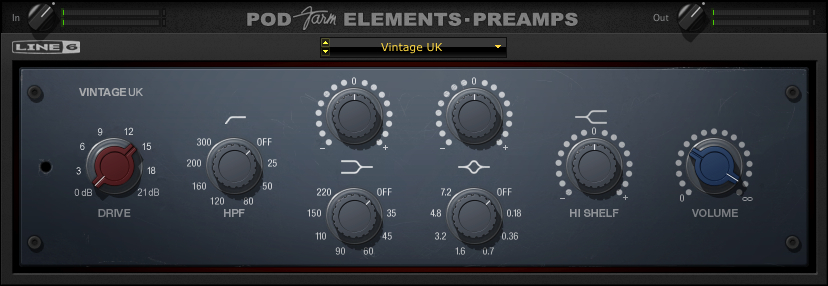
In this case choose: POD Farm Element – Preamp.  I’ve chosen Vintage UK.

Reverb:

The reverb would also be something that I would want in the channel signal chain – so that it was the same reverb for any amp I’m using.  (The other advantage is that by placing the reverb outside of POD Farm, when I change amp settings the reverb doesn’t cut off with the amp change.)

Delete the Reverb from the signal chain in POD Farm (using the same method as the compressor and the mic-pre above).

Next, (in AU LAB) in the Audio 1 channel – click on the arrow in the next available Effects field below POD Farm Element – Preamp.

If you scroll down to Line 6, choose: POD Farm Elements – Reverbs.  I’ve chosen Standard Spring.  Here are the settings I’m using.

Impulse Responses:

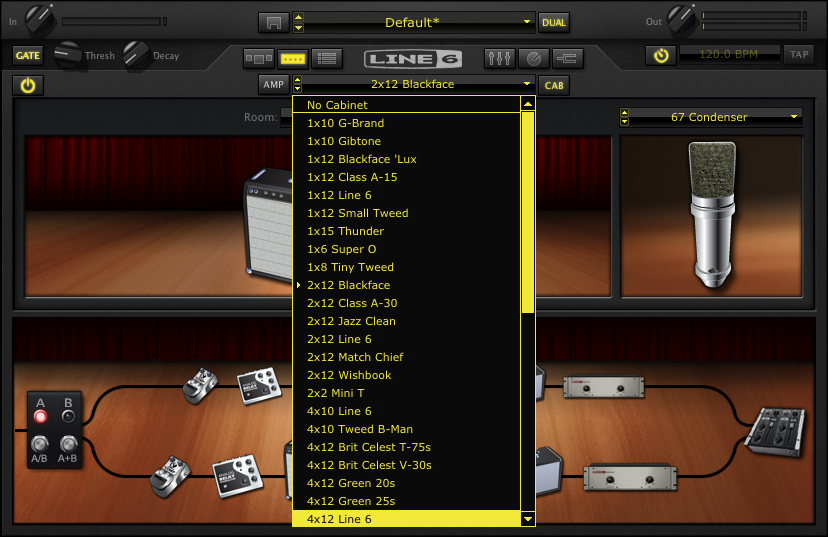
I use impulse responses rather than the speaker sims in Pod farm.  So the next thing I’m going to do is get rid of the speaker cabinet/microphone on Podfarm.  If I click on the CAB button – I’ll get a list of speaker cabinets and microphones used.  If I scroll to the top of the list – I’ll get “No Cabinet” which deactivates both the cabinet and the microphone.

Next, (in AU LAB) in the Audio 1 channel – click on the arrow in the next available Effects field belowPOD Farm Element – Reverbs.

Scroll down to Lernvall Audio and select LA Convolver.

Now I’m going to select to impulse responses to act as a speaker simulator.  I’ve experimented with putting multiple instances of LAConvolver  on buses and running multiple cabs, but since I want to run SooperLooper in the bus (Where I can loop guitar and any other incoming audio source), I’m going to just stick with a stereo set.

Select a channel and hit “choose” under file. In this case I’m using the free RedWirez cabinet I got as part of their birthday giveaway.

I want to use a high sample rate to get better definition so I’ve chosen 88.2 K. (or 2 times 44.1k)

I’ve chosen an SM57 on the grill and a KM84 about 3 inches behind the back of the amp.  I tend to start with the Wet gain in the center position and adjust as necessary.

A brief note:

I’ve mentioned this in other posts, but since I want to use the same speaker cab for all the amplifiers, I’m going with a 4×12 for familiarity.  Normally,  I wouldn’t match a double verb up with a 4×12, but since I’m going to be running a Marshall on the other channel, I’m going to just have to adjust the clean amp signals accordingly.

Fixing the Sample Rate:

If you notice, the plug in sample rate and the Impulse response sample rates are different.  It will work like this – but I want to use the highest sample rate I can for the most clarity.  There is a delicate balancing act that comes between high sample rates, stability and useable latency, so everything here is a compromise.

I’ll fix this with Audio Midi Set up :

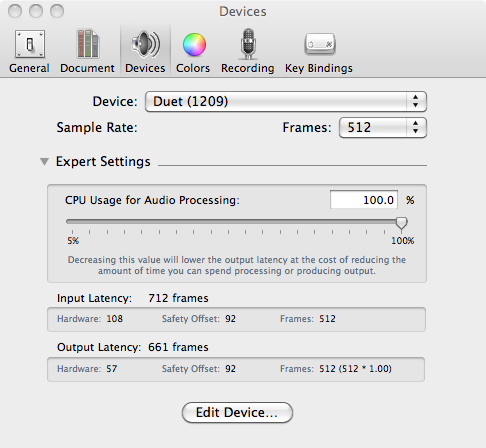
First: click on AU Lab and look under Preferences.

When the preferences window opens, click on the tab marked Devices.

If you click on the expert setting arrow you’ll see something like the following:

Another  brief note:

I’ve set the CPU to 100% to avoid glitches.  I’ve also set the latency really high to attempt to keep the system stable.  Depending on the system and interface that you’re using, you’ll probably have to lower the setting to the point that you get glitching (or max out the memory) and then bring it up a little bit from there.  With the headphone out of the Duet – even with these settings the latency is suprisingly tolerable.

If I click Edit Device – that opens up the Audio-Midi Setup application (or you could find it in the Application – –  > Utilities folder)

Note:  I’ve changed the output format to 88.2.

Going back to the Audio-midi sample rate window – it shows:

An Important note about sample rates:

I’ll mention this again – but if you’re going to be incorporating other audio into the session (including looping in SooperLooper) – you’re probably going to have to set the sample rate back to 44.1 (and set the Impulse responses back to 44.1).  If I’m not looping –  I try to set the rate as high as I can, but know that it’s going to have to get bounced down to 44.1 for recording, etc.

While I’m on the preferences Tab I might as well set up recording to the external drive.  Click on the tab marked “Recording”.

Now if I click on the “Rec” button at the bottom of OUTPUT 1 in AU LAB, it will record whatever I do to the Lacie as the default location, in a 24 Bit AIFF format.

With the changes in this part of the tutorial, the AU Lab Input looks like this with some sample input:

You’ll notice that the output is a little off balance.

If you pan it to the left you’ll balance the signal out a little more. Here’s the setting with all the global FX so far.

You may want to save the AU LAB session now, if you haven’t done so already.

In the next session, I’m going to complete the clean channel effects and automate some parameters with the Midi Learn function to be able to make changes to the sounds with the Line 6 Shortboard.

You can find all of the laptop guitar rig posts on the Blueprints tab on the top of the page.  Once on the blueprints page – just scroll down to the Laptop Guitar Rig section.

Thanks for reading!

AU Lab/POD Farm 2.0/Live Laptop Rig Tutorial part 1

I’ve received a couple of pm’s regarding AU lab and setting it up for live use (largely from this post).  With an upcoming film accompaniment and a need to re-tool the setup a little I thought I would build a rig from scratch and explain how I’m doing everything.

About this tutorial:

What I am doing here is documenting the specific process for building a working rig for myself.  If you don’t have this specific hardware/software set up, you could adapt the process to whatever you’re using.

AU LAB

First a bit about AU Lab.  If you have a Mac Laptop with an OSX operating system, you have access to one of the greatest FREE music applications imaginable.  AU Lab is a program that was designed for AU (Audio Unit – The Mac proprietary plug in standard – much in concept like a VST) developers to test plug ins – but since it can accept audio and midi, has buses and can record audio – this makes it a great tool.  The fact that it does it with a fraction of the CPU of something like Logic makes it essential.

AU Lab can be installed as part of the SDK package that is on your OSX install discs.  If for whatever reason you can’t find your discs – you can go to the Apple Developer site and sign up for a free account.  You can then download the SDK package.  Once it’s installed it should be in folder called “Developer” but if you just search for “AU Lab” on your computer it will come up.

3/10/11 NOTE:

The UA LAB Version used in all of these examples is AU LAB Version 2.1.  Version 2.2 has not been stable on my system with the Apogee Duet.  You can read about the current version here – but in the meantime – you may want to download X code 3.2.2 Developer’s Tools – which has version 2.1 of AU Lab, if it isn’t installed on your system already.

Before getting into the setup – here are the tools I’m using for this particular rig:

Hardware:

FNH custom guitar:  You can find a full review of this guitar here.

Macbook Pro- 2.4 Ghz Intel Core 2 Duo.  This is actually a 2008 version I got with a killer educational discount.  15” with firewire 400 and 800.  This Macbook has had 4 gigs of memory that I got from OWC (although the first slot can take 6 gigs so I’ll probably upgrade that before the end of the year) and a  Seagate 500 gig 7200 rpm drive.  I underestimated just how important the internal drive was to performance but it made a very big difference.

Lacie Rugged Drive – This is the 320 gig bus powered version.  Also 7200 rpm.  I run it on the firewire 800 port and use it to record to.  It’s a little overkill – but I can use it for larger sessions as well.

Apogee Duet – Firewire interface.  No other A/D converter near this quality in this price range –  No question about it.

Line 6 FBV shortboard Mark II – Line 6 got it 100% right with this product.  Smaller than the old shortboard, but can be USB powered.

Ilok key – This is required for the Ilok version of POD Farm.

Korg nanokey – The keyboard for this is a little toylike – but I’m not a keybaordist.  It is velocity sensitive and kits in a laptop bag – and I can use it to trigger patches, samples, etc.  I think all the Korg nano products are really cool.  Very useful item.

Apiotek USB 2.0 Quad – This is an express card adaptor that opens up 4 usb slots on the computer.  Since the Macbook only has 2 USB ports and I have at least 3 usb devices – this is REALLY helpful.

Software:

I’m not going to go into any real depth on the software – As I’ve already covered it in other posts.  (Look under LAPTOP GUITAR RIG)

AU Lab

POD Farm 2 Platinum (And POD Farm Elements)

La Convolver

RedWirez

SooperLooper

Absynth

Optional Software:

If using this hardware you will probably have to use one or all of these at some point.

Audio Midi Setup (Mac application – part of the OS install)

Apogee Maestro (Comes with the Duet)

Line 6 FBV Control (Free download from Line 6)

This will be a VERY indepth tutorial – but I want to make sure I cover everything I can.

AU LAB Set up

Go ahead and launch AU Lab

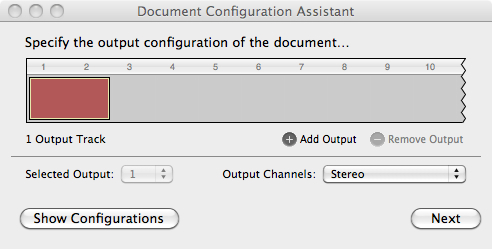
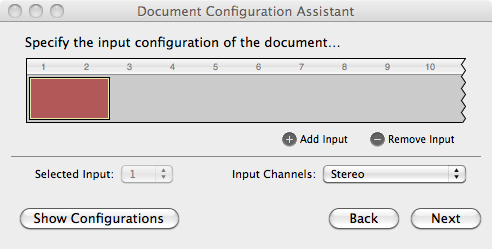
You’ll come to a screen that looks like this:

I want to run a stereo channel out so this is fine.

Click Next.

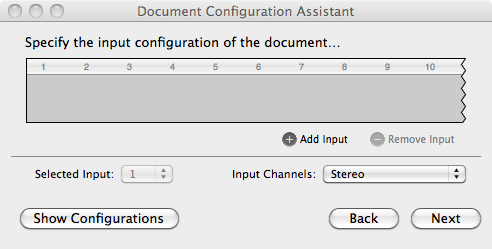
Notice that the default setting has no input – you can change this later – but it helps to set it up now.

Click Add Input.

Now you have an input source.

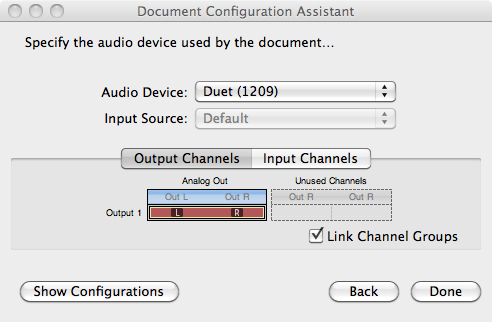
Click Next

In this case I’m using the Duet – so it came up as the default in the Audio Device field.  If you’re not seeing the audio device you want to use open Audio Midi Setup (in the Applications – –  > Utilities folder) and make sure you see it there.

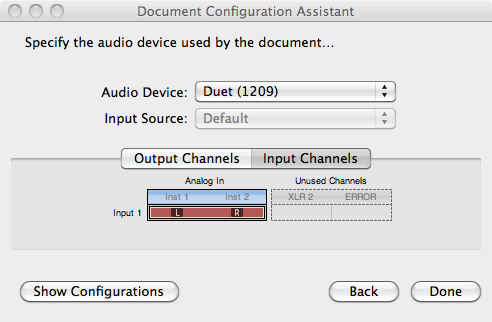
You can check the input channels if you’d like:

This shows that the Left/Right 1/4” ins are both available.  I’ll only be using Instrument 1 for the guitar – but I could run another instrument if I wanted to.

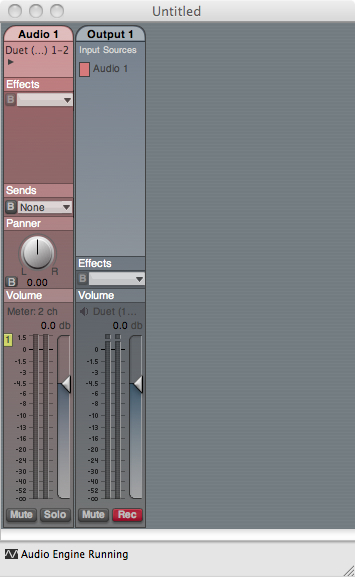
Click Done:

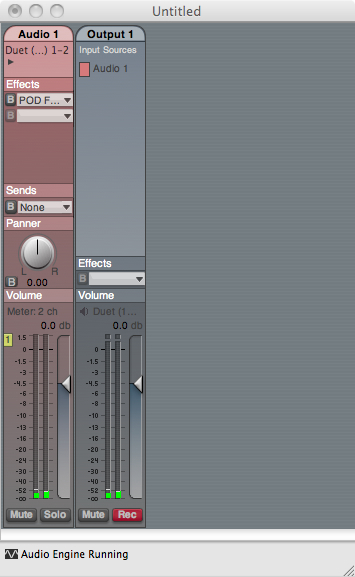
Here’s the screen that you’ll get.  If you have your guitar plugged in and strum a chord – you should hear it.  But this is going to get a lot better.

POD Farm set up

The first step is to set up PodFarm:  Click on The Effects tab in Audio 1 and scroll down until you get to Podfarm 2.

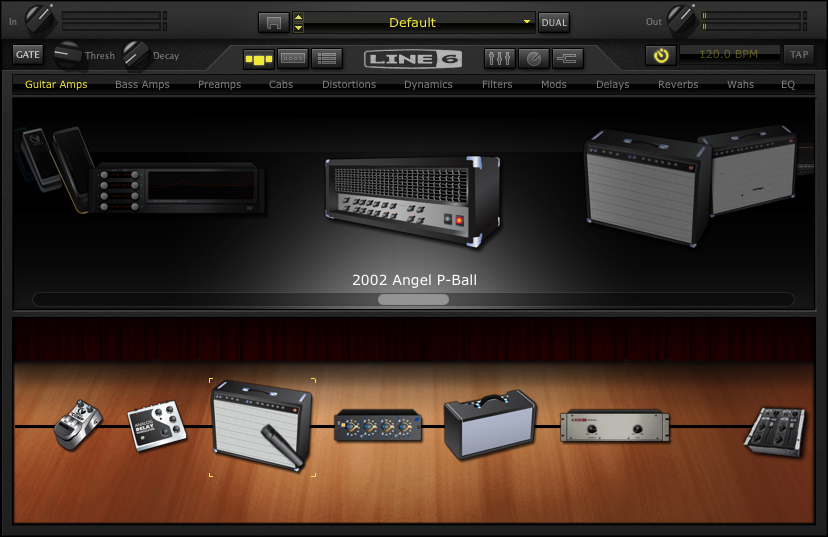
Here is the default screen in Pod Farm:

What I’m going to do here is set up a clean and distorted channel that I can switch back and forth between and automate some of the parameters so I can change them with my shortboard.

The First thing to do is get the input sorted out – since I’ve selected a stereo input in AUlab – the default in Pod farm will be a stereo in.

I only need  the left channel in as I’m only using 1 guitar for right now.

If I click on the arrow to the right of input: Stereo and scroll down to left – I now have the Instrument 1 Input on the Duet (left) as the input for this channel.

Before setting everything up – I’ll take a second to get in tune:

If I click on the tuning fork to the right of the Line 6 logo – that opens the Tuner.

If I click on the tuning fork to the right of the Line 6 logo – that opens the Tuner.

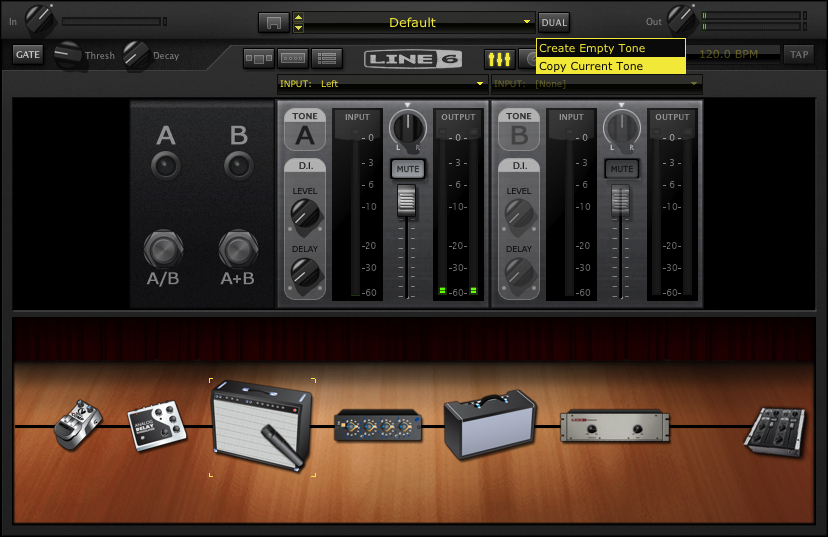
The next step is to create a Dual Tone.   In this case I’ll just copy the current tone.

Click the dual button and select Copy Tone.

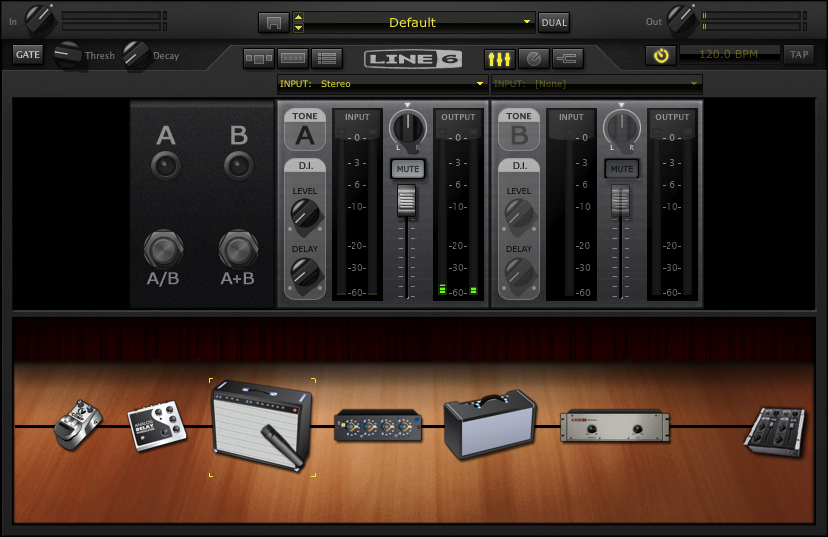
And you’ll get this:

Note that the input has stayed the same as well.  Now my single guitar input can be used on both channels.

In general, I haven’t had a lot of success with 2 channel sounds – particularly distortion – which tends to overload in unpredictable ways.  I’ve clicked on the A+B Switch to turn it off.

A brief note:

The first time I did this – the guitar tone was digitally distorting (unpleasantly) so I brought the output of PodFarm down and it was still an issue.  Once I opened Apogee Maestro – the utility that came with the Apogee Duet – I realized that the signal coming out of the Duet was too hot.

It’s important to realize that the more items you add, the more things you’ll have to check when it goes wrong.

You may want to save the AU LAB session and save the POD Farm patch as well.    AU Lab saves all the settings of all the effects in the session, but you need to save the patch in POD Farm to load it again.

In future sessions, I’m going to create an A/B rig with a dirty and clean guitar amps and use the midi learn functions to change effects with the Line 6 Shortboard.

You can find all of the laptop guitar rig posts on the Blueprints tab on the top of the page.  Once on the blueprints page – just scroll down to the Laptop Guitar Rig section. 

Thanks for reading!
A quick lick – and a rig du jour update from Ho Chi Minh City

Greetings from the former/current Saigon. (Technically Ho Chi Minh City but many of the locals call it Saigon).  I had hoped to post a couple of blog updates up before I left, but instead was running around checking things for the trip. Now a jet lagged – iced coffee and soon to be bahn mi –  fueled post:

.

1 lick or 2?

So first – here is a lick that works off of the swept pentatonic idea (alternating 3 and 1 note per string ideas) that I explored in the last online lesson (you can find a pdf of that lesson here).  While the online lessons have focused a lot on pentatonics – I wanted to add the tritone to make “the blues scale” and show how this approach could be adapted.  Here is the idea ascending:

.

It’s very scalar – but I added  a couple of points of interest:

1. the little descending turn around allows you to play the basic ascending idea starting on both up and down strokes.

2.  I started on the tritone (if played over E minor) or the b3 (if played over G major) instead of the root.  If you’re playing this over G – think Bluegrass metal ; )

3.  The motion is more diagonally oriented than the strict pentatonic example but is the same basic approach.  I start the lick with my first finger and then shift positions for the D on the 12th fret of the D string and the D on the HighE.

.

Here is an mp3: Lick1

As variation – I took the same concept and applied it in a more positional approach.  Be careful with this stretch!  If it hurts stop immediately!!!

.

.

Here is an mp3: Lick 2

And finally here are the 2 licks played back to back:  backtoback 1

.

Laptop Rig

So I bit the bullet and got an apogee duet.  WOW!  It really has made a stunning difference in resolution and I suspect will help a lot with future mixes I’m working on. With that in mind I wanted to share with the rig I used for the mp3s above.

Here was the basic amp setting I used in Pod Farm 2.0.  This was based on a customtone forum patch called Electric Gypsy.  I just swapped in a tube screamer and bypassed the cab (using the Recabinet impulse responses instead).  One of the big revelations that I found in pod farm is that I could put preamps AFTER the power amp.  Adding that in to the signal chain opened it up a lot.

.

.

I blogged about using impulse responses over the cabs before.  The lie 6 cabs sound good – but to my ears the IR’s add a whole other area of depth.  Here are the IR’s I used – these were from the Modern 1960 4×12 set.  The screen shot is from LA convolver.

.

.

Finally – a screenshot of how it all lays out in AULab.  I just hit the record button in au lab and edited out the noise before and after the take in fission.

.

.

FNH Guitar –> Apogee Duet–>AULAB–>PSP Vintage Warmer–>Pod Farm 2.0–>La Convolver (w. Recabinet IRs)–>Sooperlooper

.

I’m still tweaking things – but I think that soundwise everything is improving a lot from where it was even a month ago.  Once I get an A/B set with the floorboard – I think that the laptop is going to be the rig du jour.

One last note – the macbook has is using 4 gigs of ram and was updated with a 7200 rpm Seagte internal drive. (500 gig from OWC).  My computer accepts a 4gig chip in 1 slot – so I may go up to 6 gigs – but the faster internal drive made a big performance difference in the machine. I’d say you’d really need to have that if you’re going to try to go this route.

* Note – I’ve recently posted more on this topic here which may be of interest to you.